LABEL DESIGN & PRINTING FOR WINDOWS
Label & Barcode Studio
Design the label.
Prepare the whole print run.
Create barcode and QR labels on Windows. Arrange your design visually, use product data from Excel or CSV, and choose the quantities and page layout you need.
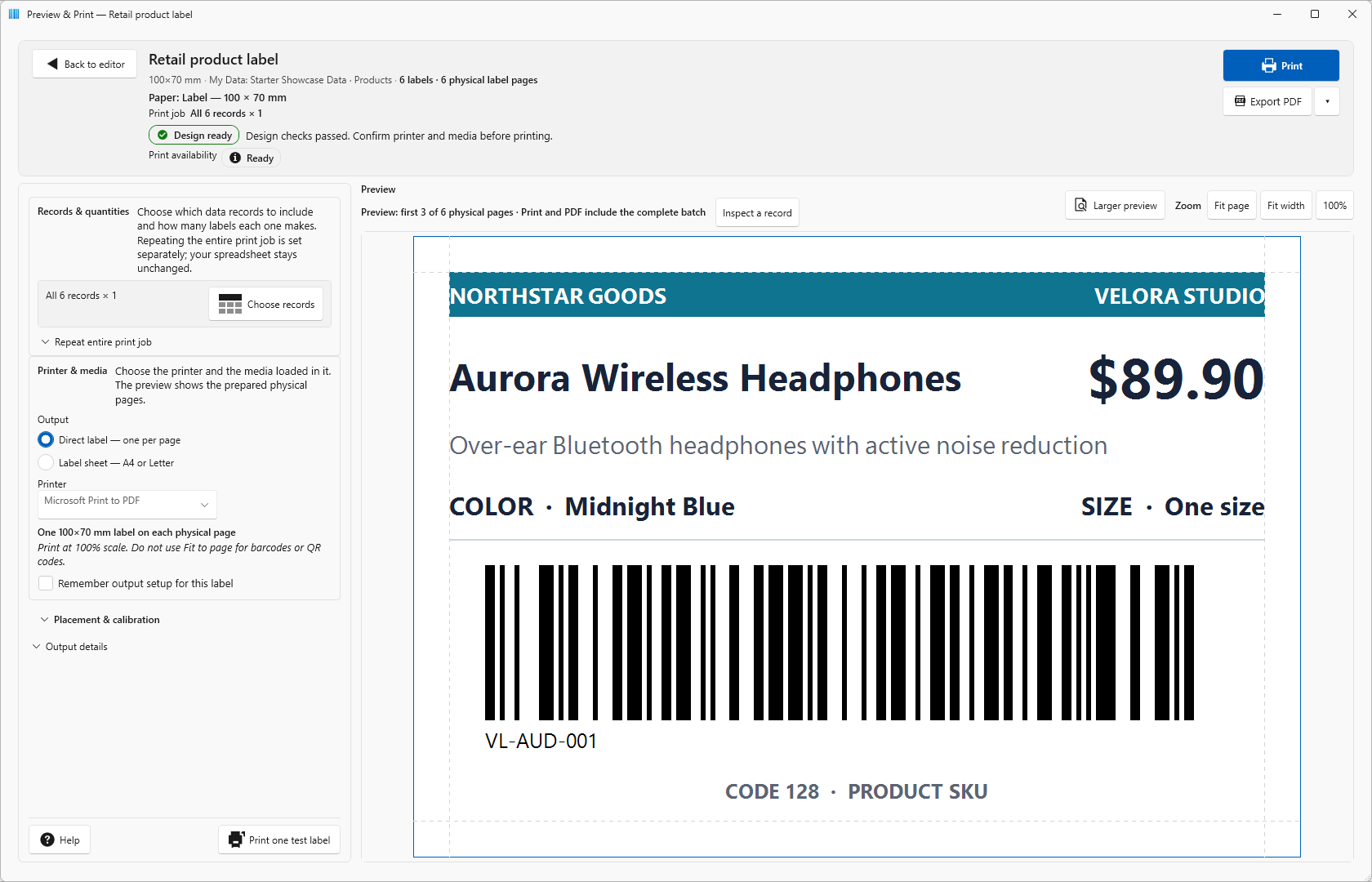
A useful starting point. A design of your own.
Start with a ready-made product label, QR link, equipment tag or contact badge. The product and QR creators guide you through the first details; a blank label gives you an open canvas.
Customize the text, codes and images to make a layout you can reuse.
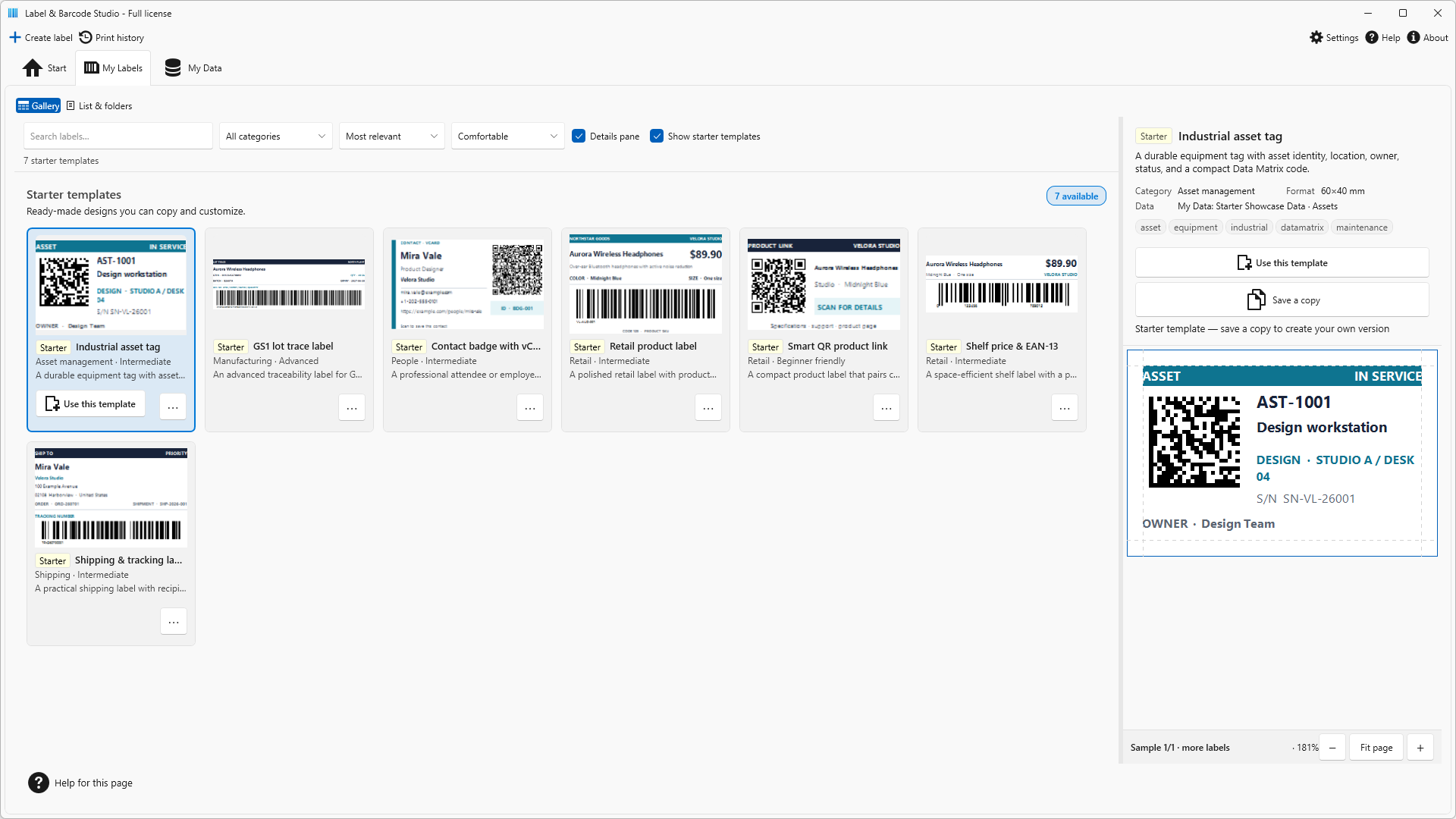
Arrange it visually.
Refine it precisely.
Move text, images and codes into place with the mouse. Alignment guides help you line up elements; the Inspector lets you refine their position and size in millimetres or inches.
Use the Simple editor for everyday changes and Advanced when you need expressions or more detailed settings.
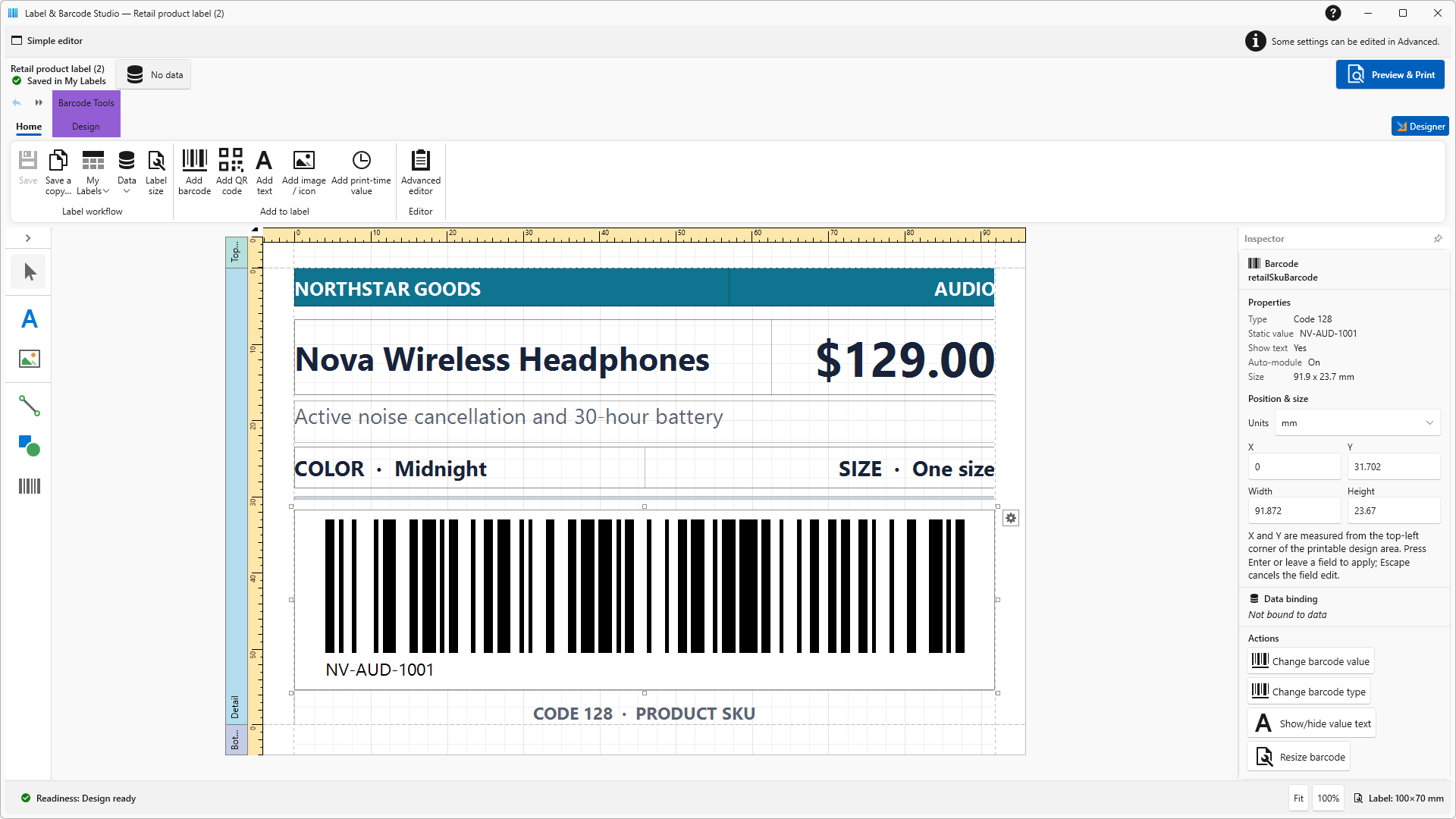
One design. Different products.
The quantities you need.
Connect Excel or CSV columns to the text and codes on your label. Choose the products for this job and set quantities manually or from a column.
The print-job selection does not rewrite your source spreadsheet. Check the prepared pages before producing the batch.
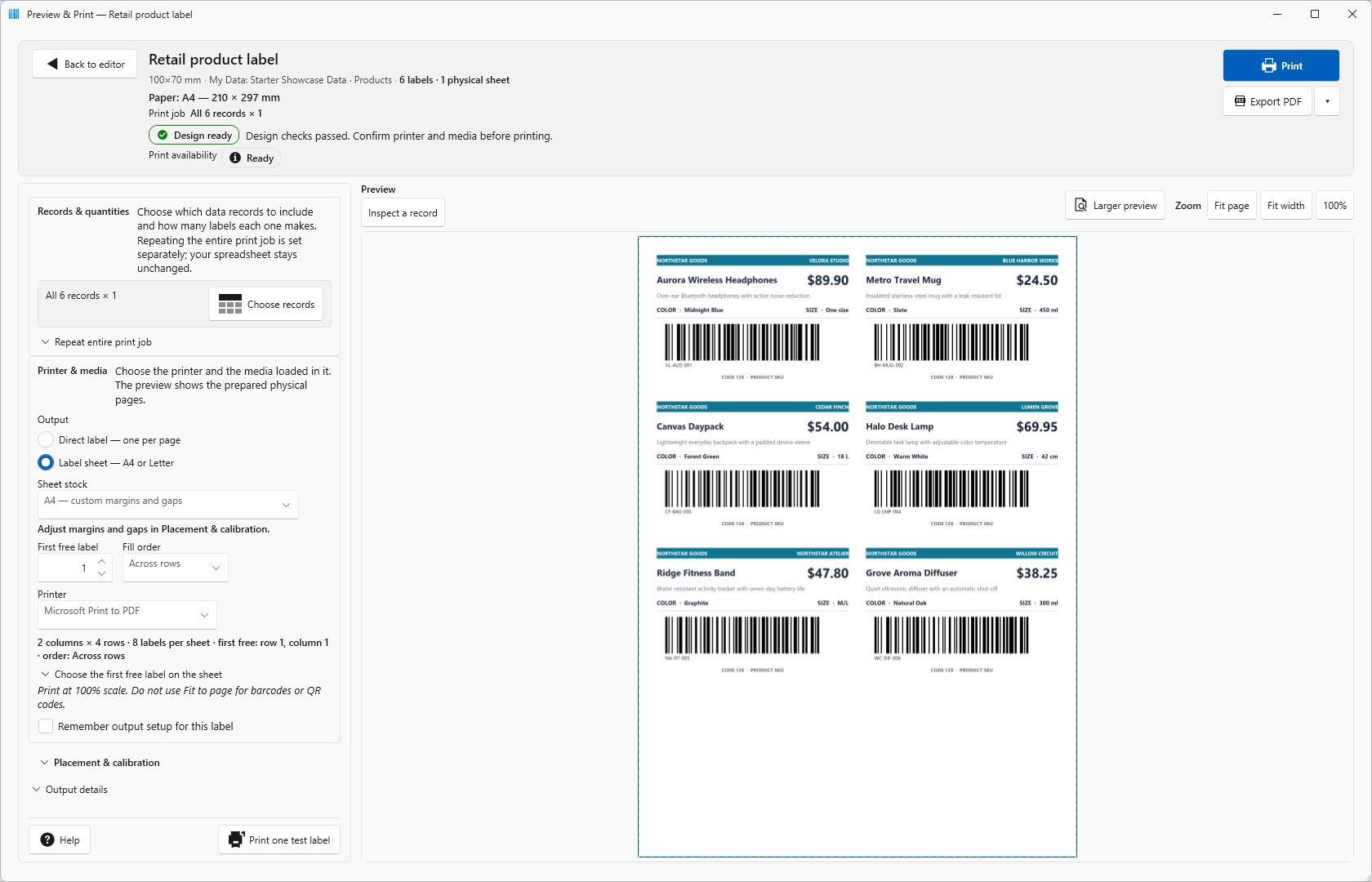
Start at the first free label.
Prepare A4 or Letter sheets with margins and gaps that match your stock. For a partly used sheet, choose the first free position and continue from there.
Use one label per page for a matching label-printer setup. Printer offsets and an alignment test help you check placement.
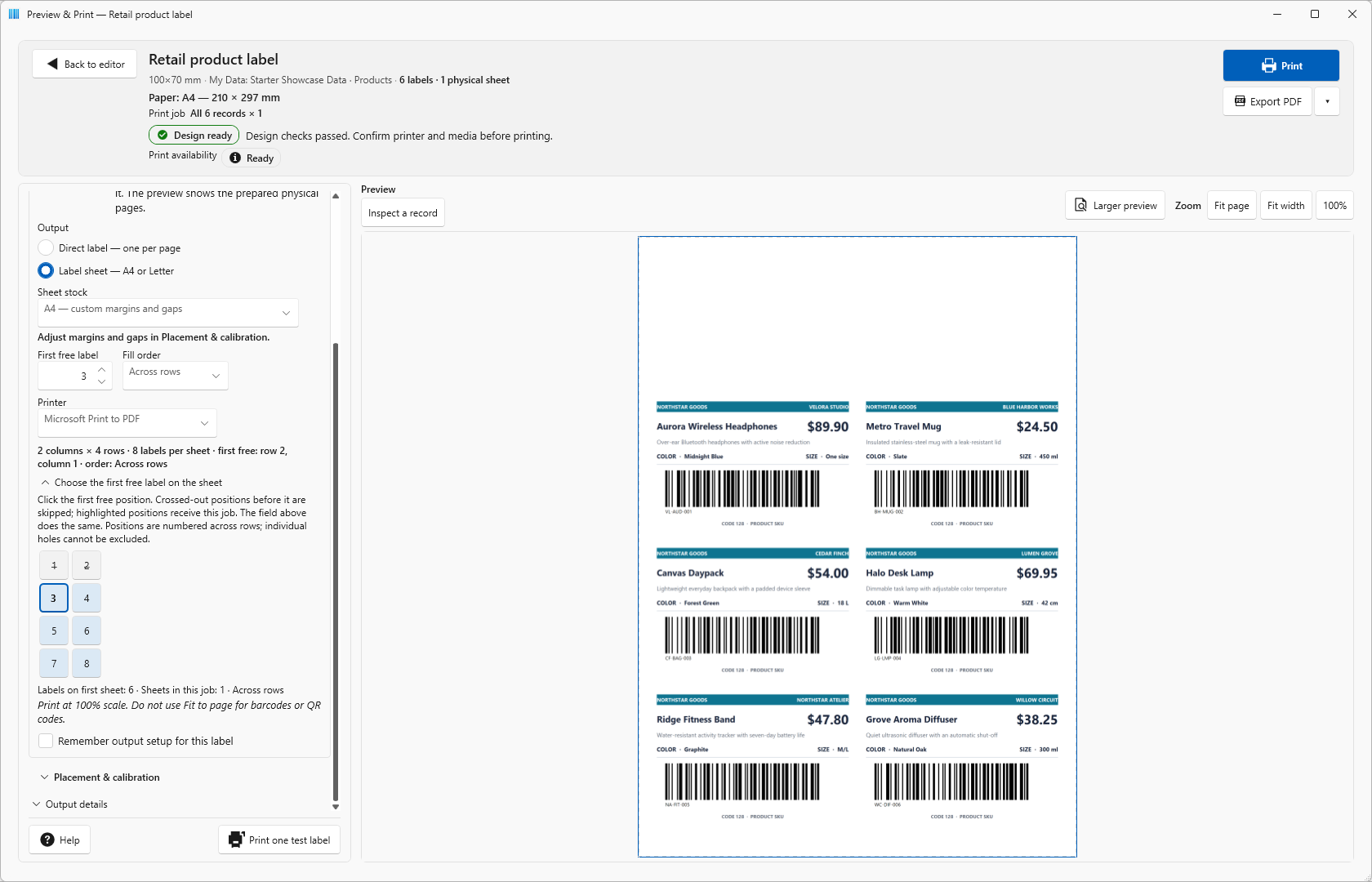
Keep a useful design ready for next time.
My Labels keeps your saved projects together, with thumbnails and search. Open the design you need, create a separate variant or prepare another print run.
Save the editable design
Return to the project in My Labels when a detail needs changing.
Keep the original
Duplicate a saved label or use Save a copy, then open the new version to continue editing it.
Export the finished output
Create a PDF or label images while keeping the editable project for the next job.
Useful beyond the price tag.
Bring consistent information to product links, equipment and changing batches.
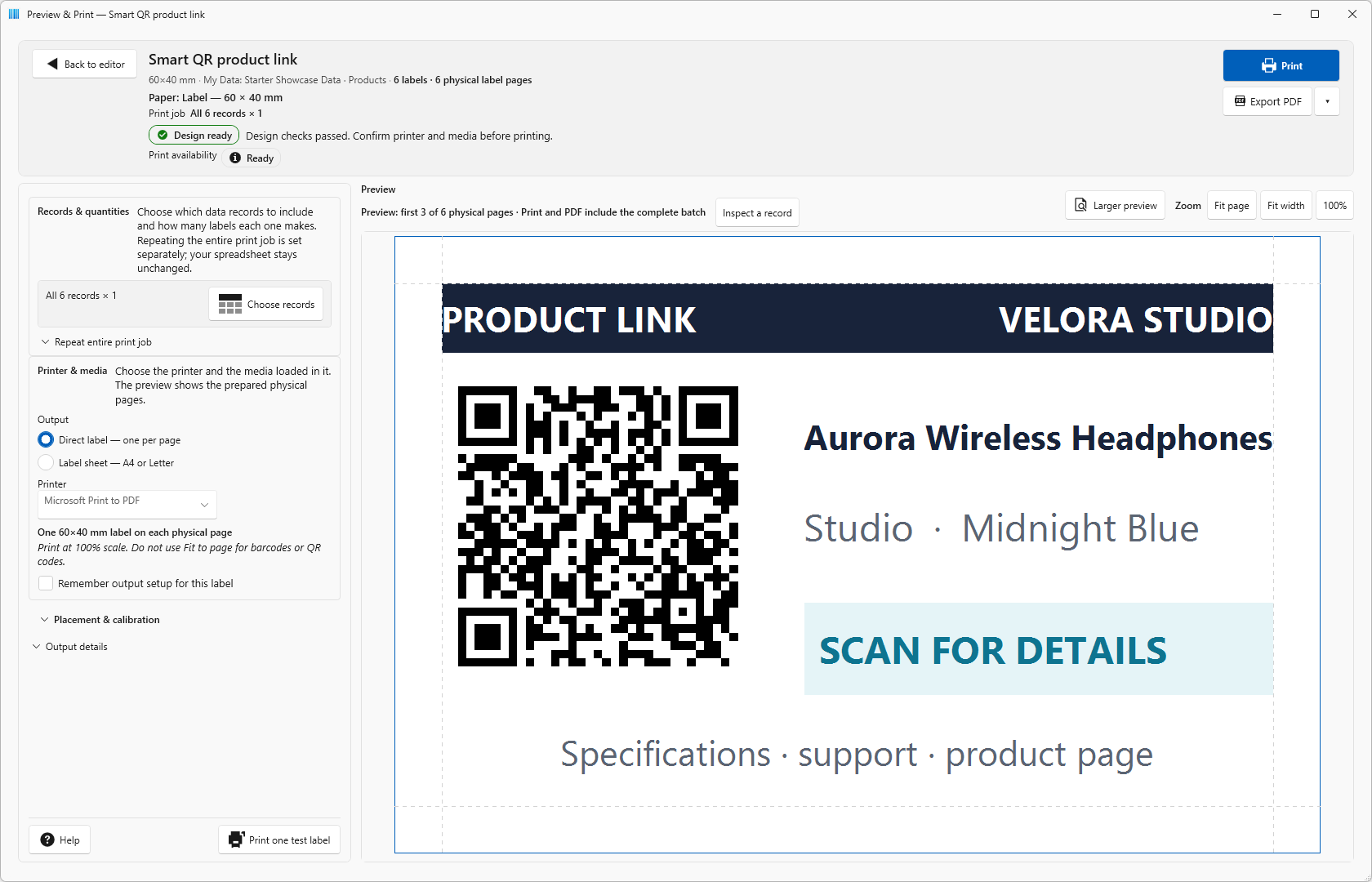
A QR link with a clear purpose
Pair a website QR code with readable product information or a short instruction. Use your own product or support address.
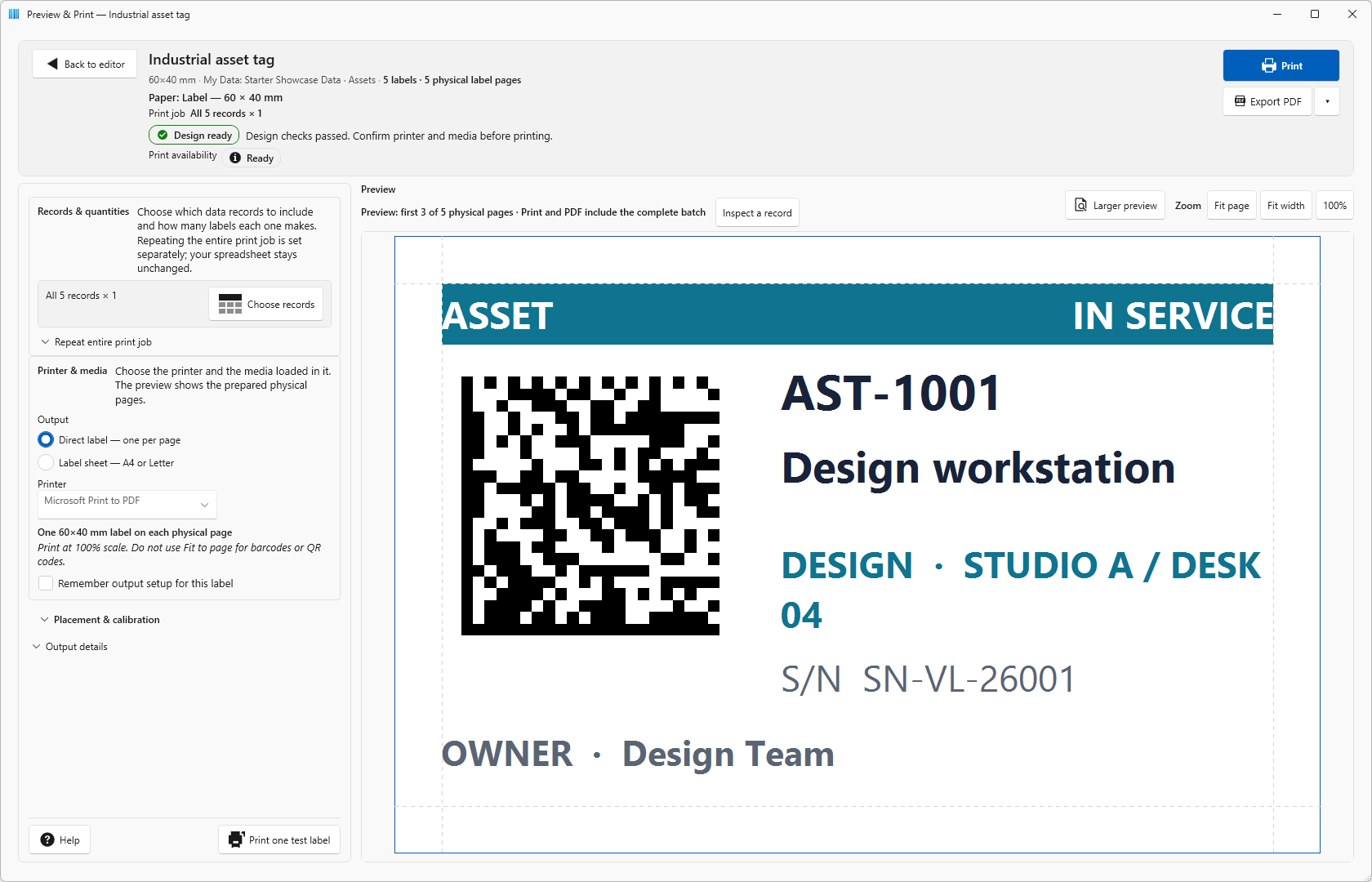
Equipment identification
Create tags with a DataMatrix code, asset ID, location, serial number and owner information.
Print, share or reuse the output.
PDF pages
Export the prepared physical pages, including the selected records, quantities and sheet layout.
PNG and SVG images
Export individual label images. PNG offers 300 or 600 DPI; a set of images can be packaged in a ZIP.
Numbered and batch labels
Generate numbered data or add a value entered for each print job when the batch code changes but the design stays the same.
Printing uses compatible Windows printer drivers. This includes thermal label printers when the driver supports your media size and setup. The app does not generate or send raw ZPL, EPL or TSPL commands.
Test a sample with your intended label stock and barcode reader before a full batch.
Learn with a result you can check.
Watch 10 short video tutorials, try the fictional practice data and compare your result with the example PDFs.
Have a practical question?
Find answers about saved designs, data connections, quantities, printers and export.
Your next label starts with a reusable design.
Create the layout, choose the data and quantities, and check the prepared pages before printing.
For Windows. English-language interface.
See current price and license terms in Microsoft Store.