Barcode labels from Excel and CSV
Build the layout once. Let each row supply the details.
Connect product codes, names, prices and other spreadsheet values to a reusable label. Choose the records and quantities for the current job, then review the output before printing.
For Windows. English-language interface.
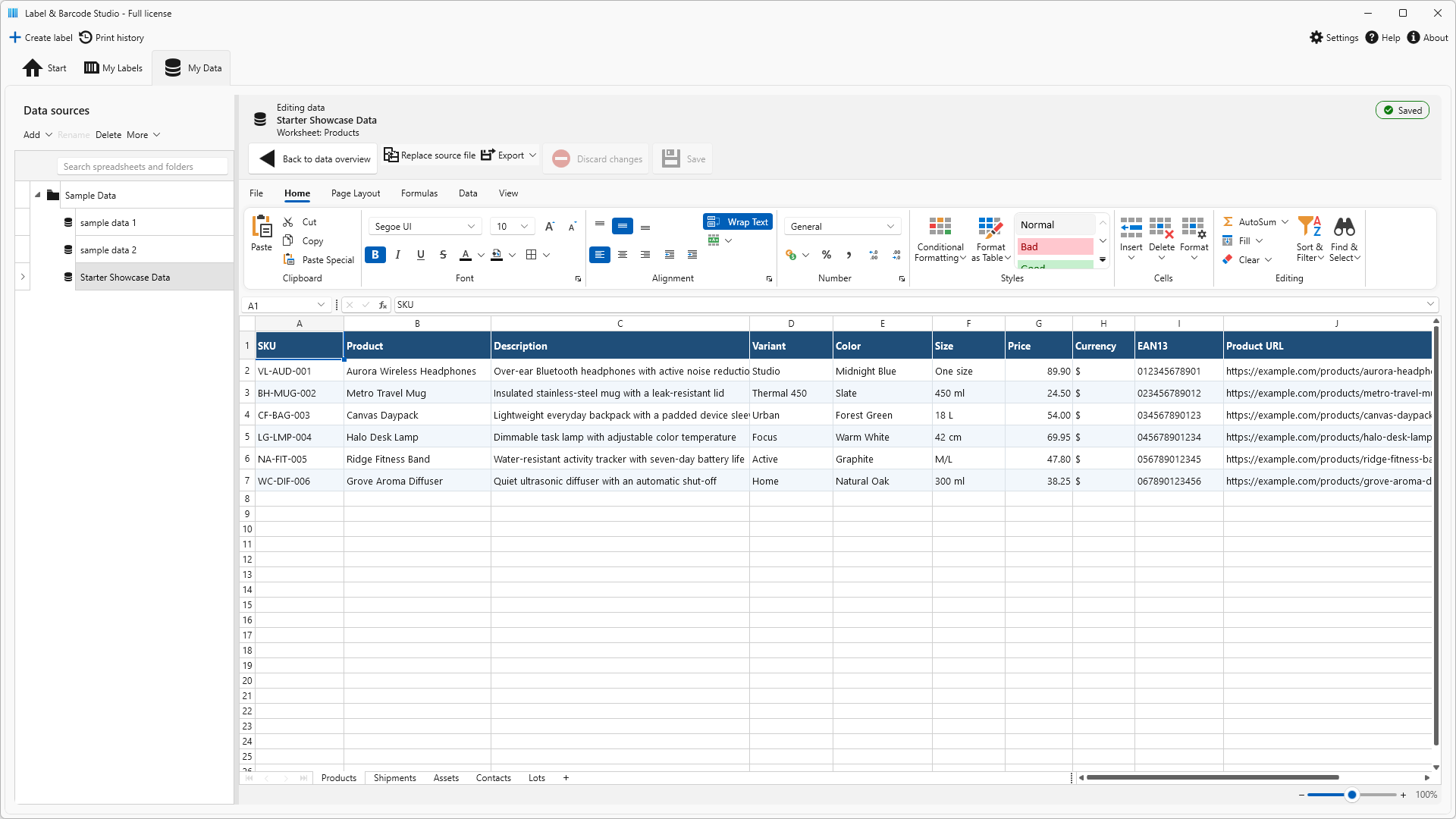
Keep the data you already have.
Use an Excel workbook or CSV file, or prepare an editable spreadsheet in My Data. Review the worksheet, header row and selected columns before connecting them to the label.
Keep identifiers such as 001042 as text so their leading zeros remain part of the value. Include a quantity column when it should control the print run, even if it will not appear on the label.
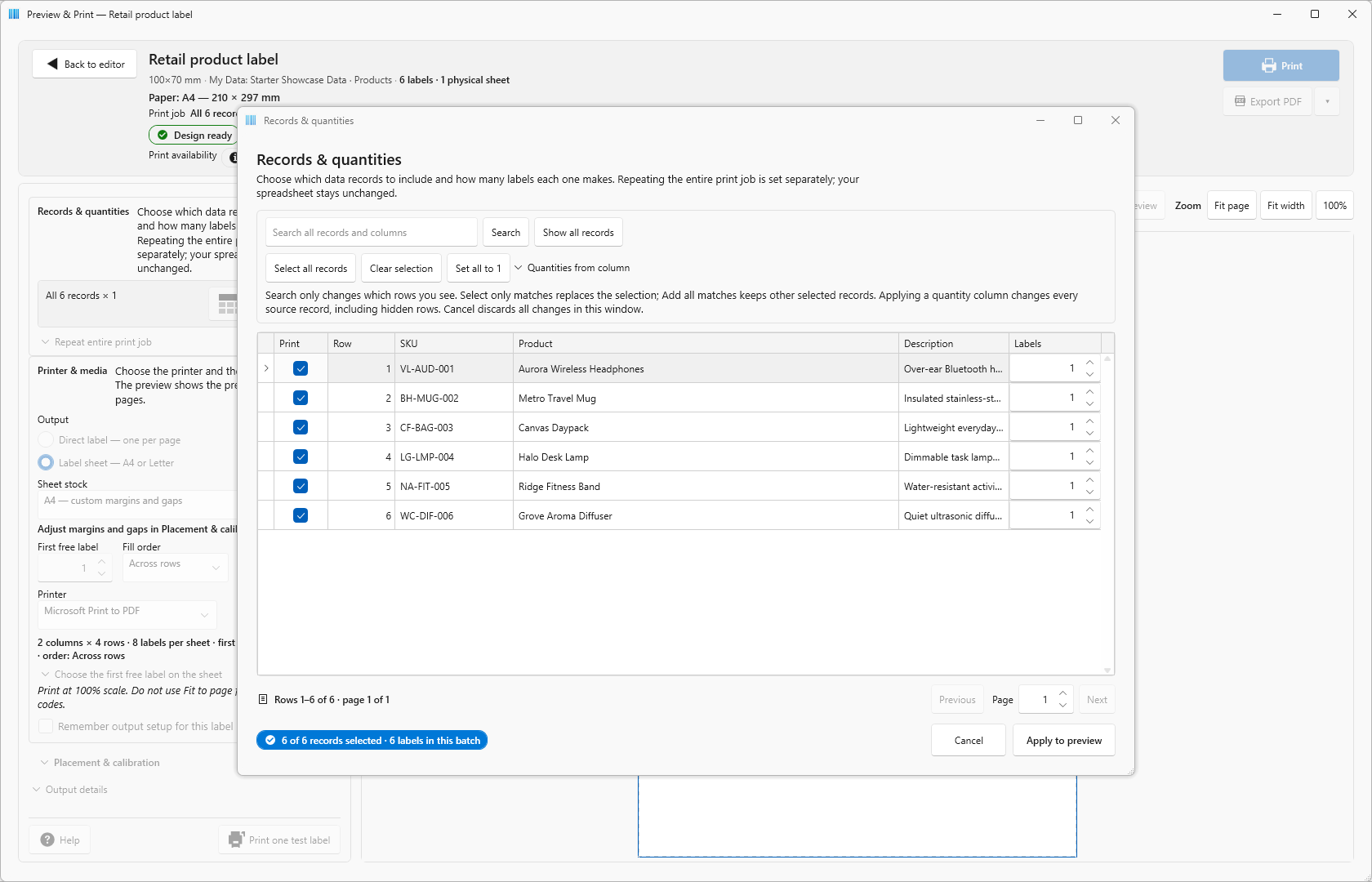
Choose the print run, not a new spreadsheet.
Select the records you need. Set their quantities or apply values from a quantity column. The summary shows the total number of labels before you continue.
Searching changes the rows you see; it does not automatically remove hidden selections. Review the selection messages and total.
These choices affect the print job, not your source spreadsheet.
Connect each column to the right element.
Use a product name for a heading, an SKU for a barcode and a price for a separate text field. Decorative text and images can stay fixed while the data changes for each record.
Need two values in one line? The Advanced editor can combine fields without changing the barcode’s own data connection.
Connect a file
Read from an Excel or CSV file that stays available at its original path. Reconnect it if its location changes.
Save in My Data
Keep an independent, editable copy inside the app. Later changes to the original imported file do not automatically update that copy.
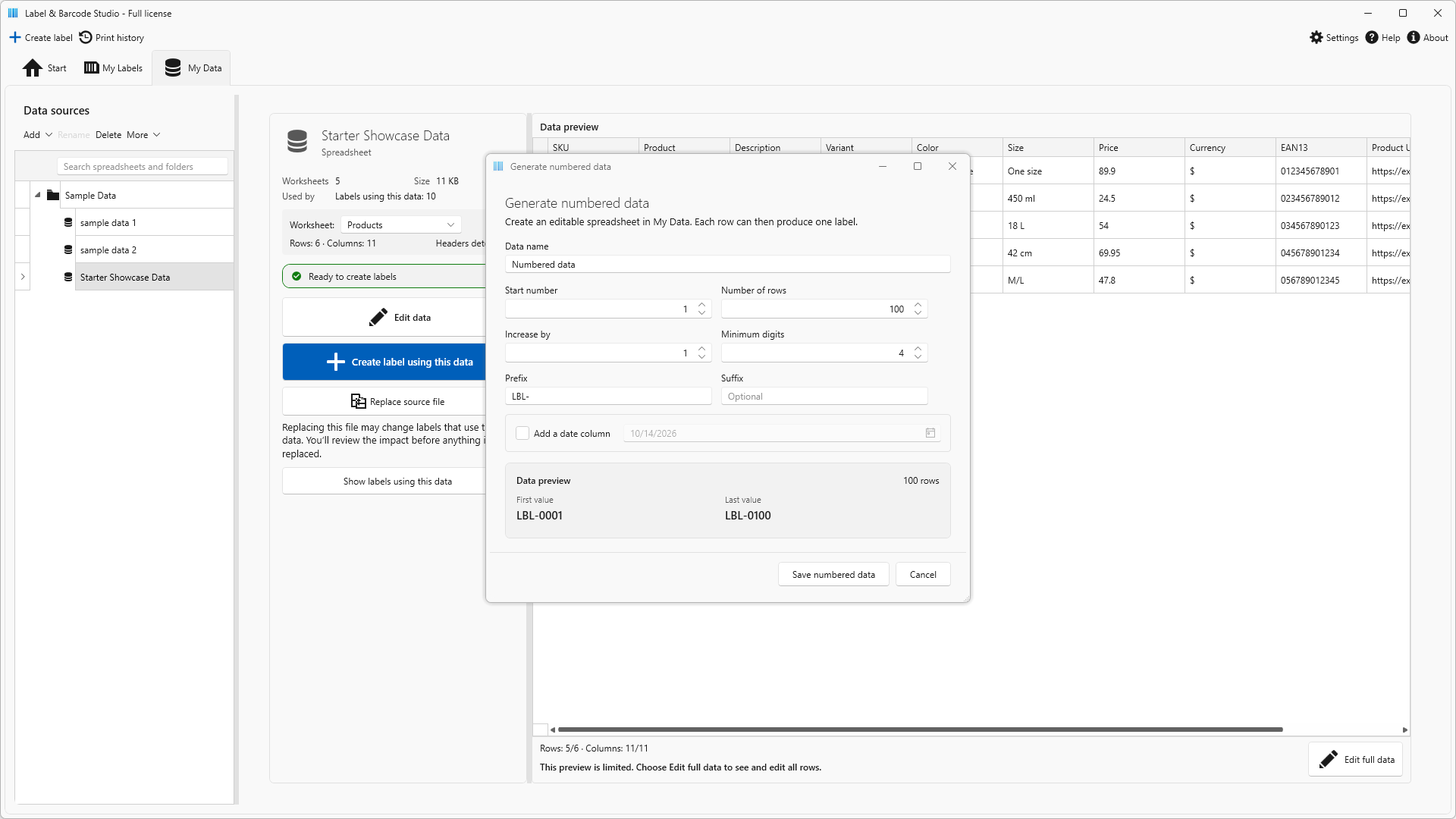
Start a numbered series.
Generate rows with a start number, step, prefix, suffix and minimum number of digits. Review the first and last values, then use the generated data for labels.
Use your own numbering rules. The generator does not allocate official product identifiers or check uniqueness against an external inventory.
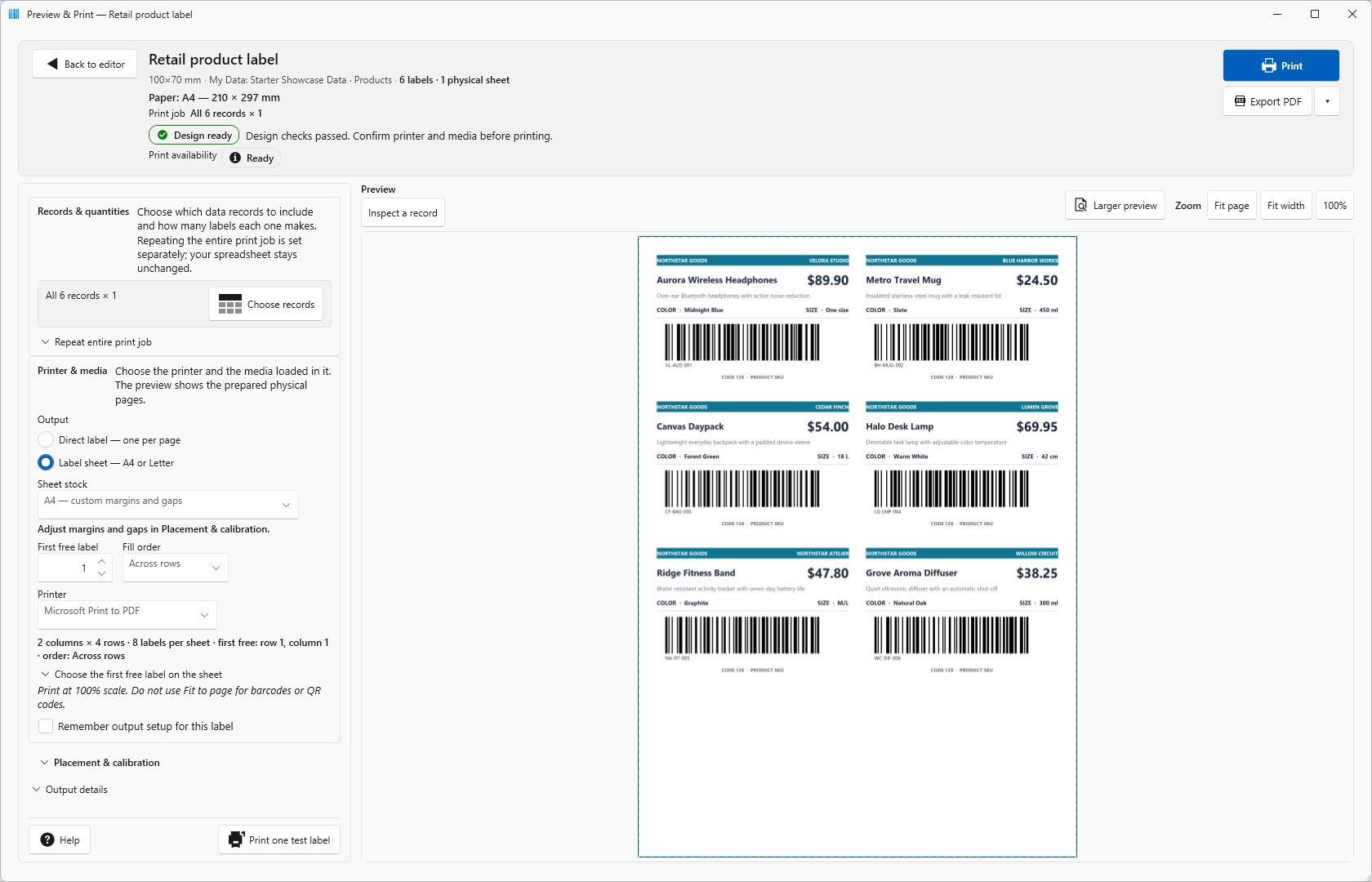
Check the exceptions before the full batch.
Use Inspect a record to review another product, including longer text or code values. Inspecting one record does not replace the selected job or its quantities.
The interactive preview shows up to the first three physical pages. Export PDF contains the complete selected job, so you can check every page.
Try a small result you can verify
The catalogue video uses four fictional products with quantities 2, 3, 1 and 2. The result is eight label pages, with the original SKU values retained.
Put your product data to work.
Reuse one label design and prepare the right quantity for each item.
For Windows. English-language interface.
See current price and license terms in Microsoft Store.