WATCH. TRY. CHECK YOUR RESULT.
Label & Barcode Studio video tutorials
Create a label you can reuse. Prepare the right print run. Follow short, practical videos that show each action and its result in the app.
What would you like to do?
Create and customize
Prepare a print job
Work with codes and data
Learn one useful task at a time.
Start with lesson 01, or jump to the task you need. Open a lesson to enlarge its player. For small controls, select 1080p HD in the player settings and use full screen. Pause while you follow along.
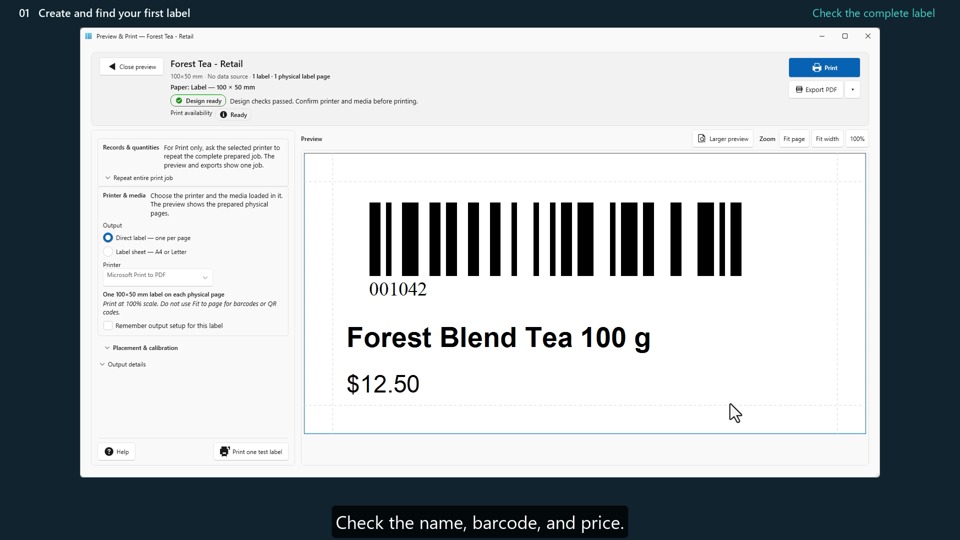
Create your first barcode label
Create a product label with a name, barcode and price. Save it, find it again in My Labels, and export a correctly sized PDF.
To watch here, enable Functional, Analytics and Advertisement cookies in Cookie preferences, or use the YouTube link.
Start here. No earlier lesson is needed.
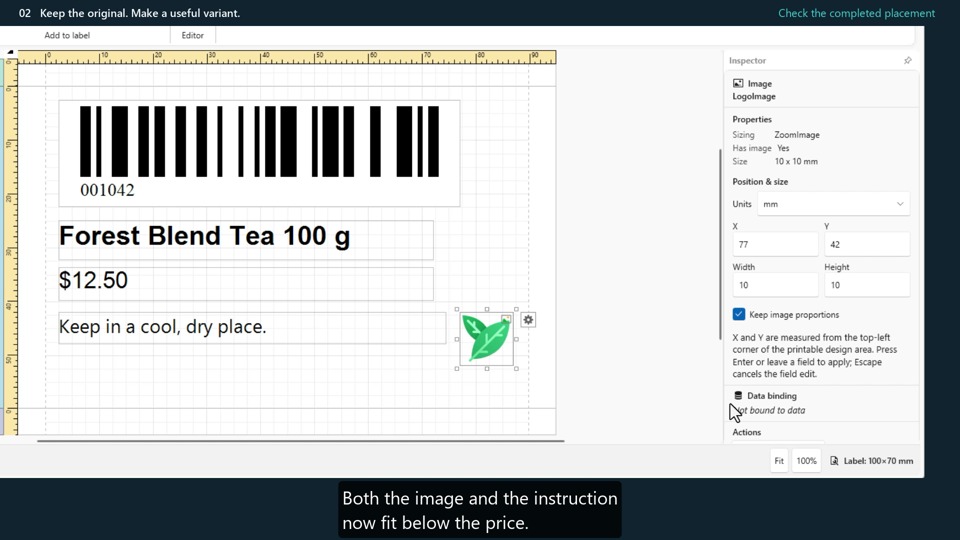
Keep the original. Make a useful variant.
Make a storage-label variant with an instruction and an icon while keeping the original retail label unchanged.
To watch here, enable Functional, Analytics and Advertisement cookies in Cookie preferences, or use the YouTube link.
Start with your saved retail label from lesson 01.
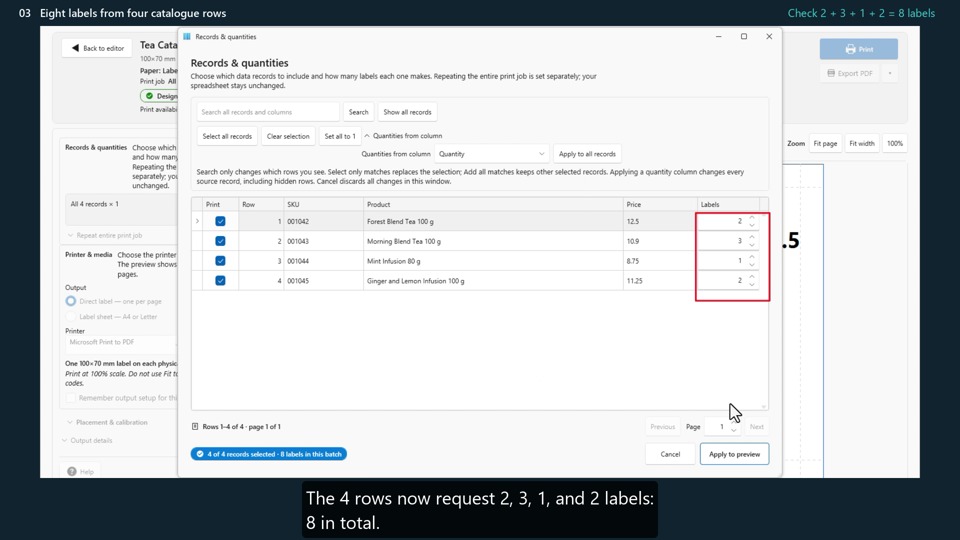
Eight labels from four catalogue rows
Connect CSV columns to a reusable label and use a quantity column to turn four product rows into eight labels. Check the complete PDF before printing.
To watch here, enable Functional, Analytics and Advertisement cookies in Cookie preferences, or use the YouTube link.
Use products.csv from the practice files. The example uses Direct label — one per page, so eight labels produce eight PDF pages. A sheet layout can place several labels on one page.
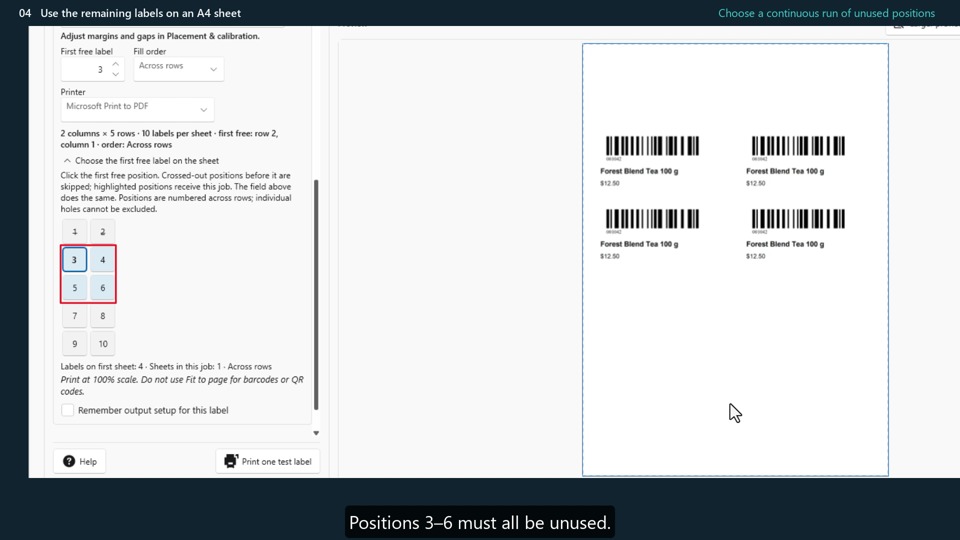
Print on a partly used A4 sheet
Prepare four labels, start at the next unused position on an A4 sheet, and check when the job needs a second sheet.
To watch here, enable Functional, Analytics and Advertisement cookies in Cookie preferences, or use the YouTube link.
Use the 100 × 50 mm retail label from lesson 01. Match the settings to your own physical stock. Set one starting position; the job continues through subsequent positions in the chosen fill order. Individual gaps cannot be selected separately. Reuse a sheet only when your printer and label-stock instructions allow it.
Reuse one design for different batches
Add a print-time batch code. Prepare BATCH-100 and BATCH-200 from one saved design while keeping its reusable default.
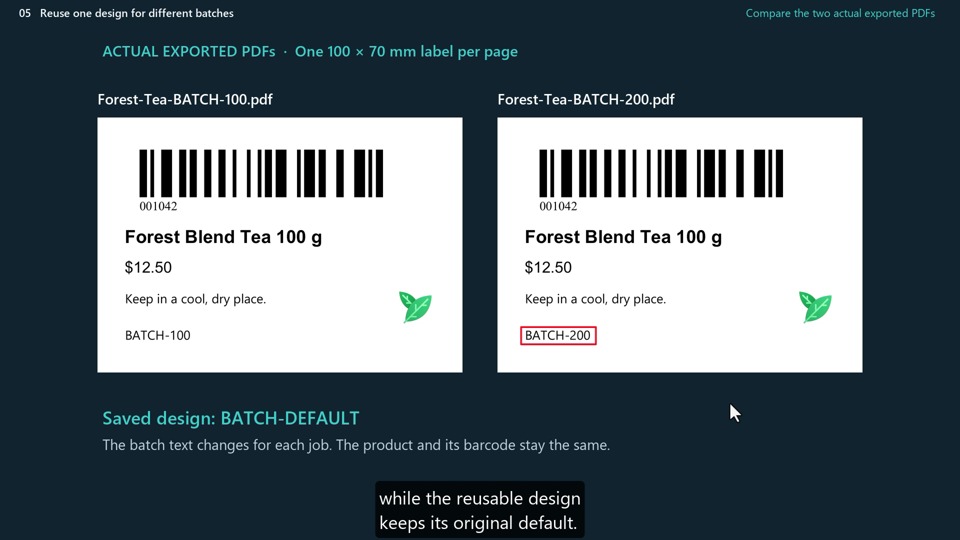
To watch here, enable Functional, Analytics and Advertisement cookies in Cookie preferences, or use the YouTube link.
Use a separate copy of the storage label from lesson 02.
Combine two columns in one text element
Combine SKU and Product in one heading with an expression. Check the longest value and verify that the result is preserved when returning to the Simple editor.
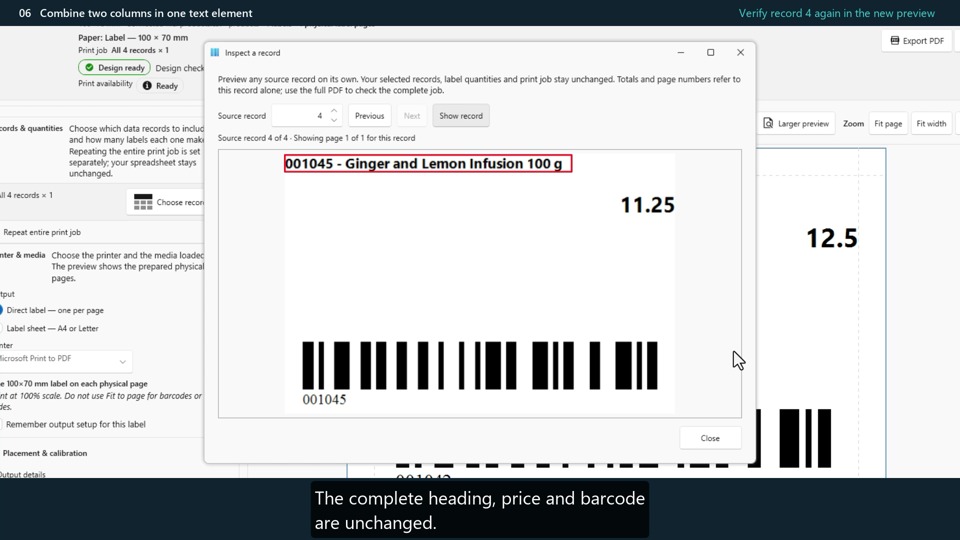
To watch here, enable Functional, Analytics and Advertisement cookies in Cookie preferences, or use the YouTube link.
Use a separate copy of the catalogue label from lesson 03. This lesson uses the Advanced editor.
Adjust alignment and restore the baseline
Move the output right, down, left and up; compare actual PDF exports; and restore the baseline with Reset offset. Learn how calibration differs from Outer margin.
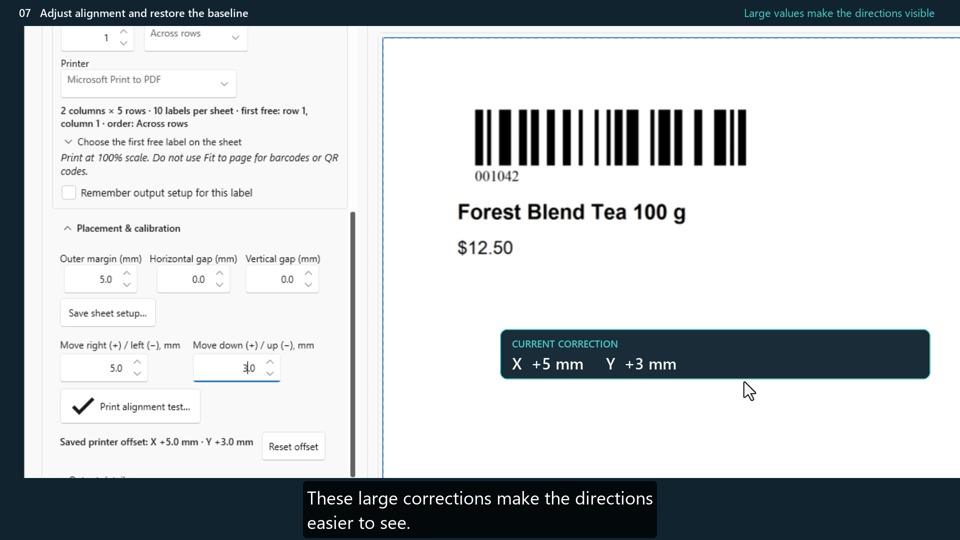
To watch here, enable Functional, Analytics and Advertisement cookies in Cookie preferences, or use the YouTube link.
Use the retail label from lesson 01. The film demonstrates screen and PDF output; measure your actual printer separately. Offsets correct a consistent position shift, not incorrect scaling or paper-feed problems.
Arrange your label visually
Drag and align label elements, resize a text box, set an exact width and font size, then check the saved result in Preview & Print.
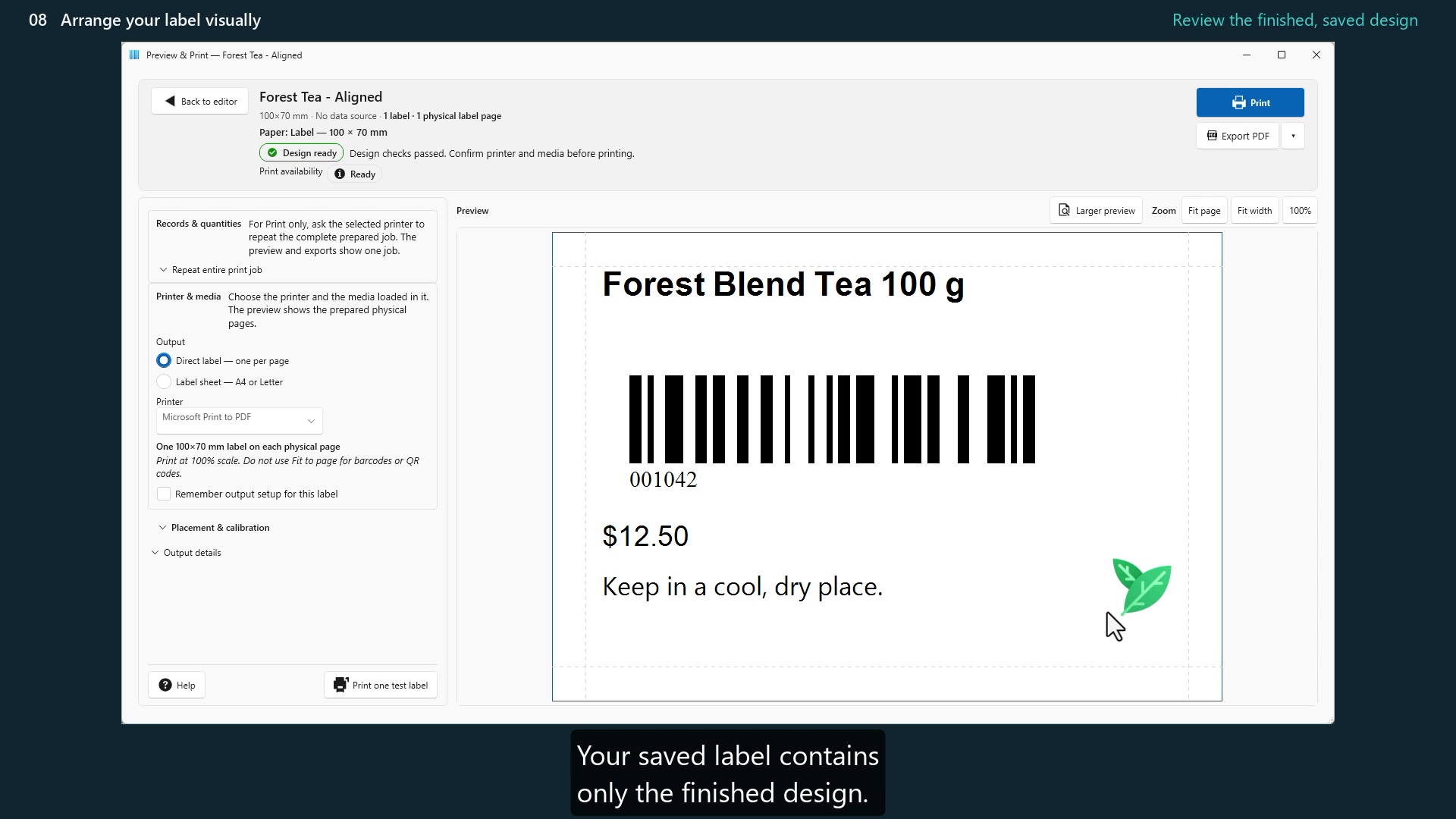
To watch here, enable Functional, Analytics and Advertisement cookies in Cookie preferences, or use the YouTube link.
Use a copy of a simple label, or recreate the starting layout from 08-10-practice.html in the practice files.
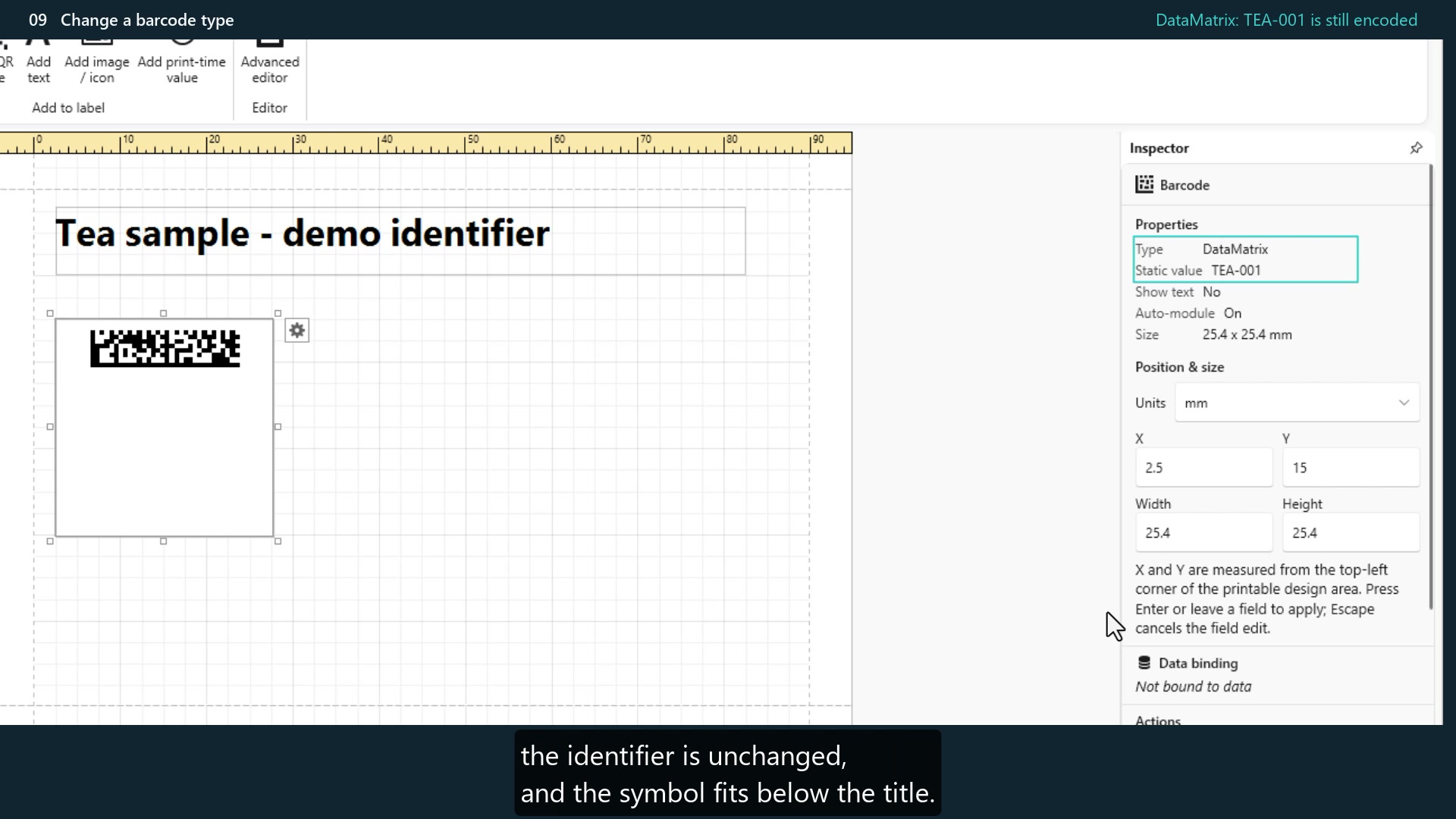
Change a barcode type
Change Code 128 to DataMatrix while keeping the value TEA-001. Handle an incompatible EAN-13 choice and check the exported symbol.
To watch here, enable Functional, Analytics and Advertisement cookies in Cookie preferences, or use the YouTube link.
Start with a static Code 128 barcode. The practice files include the TEA-001 example. Test the printed result with your intended reader.
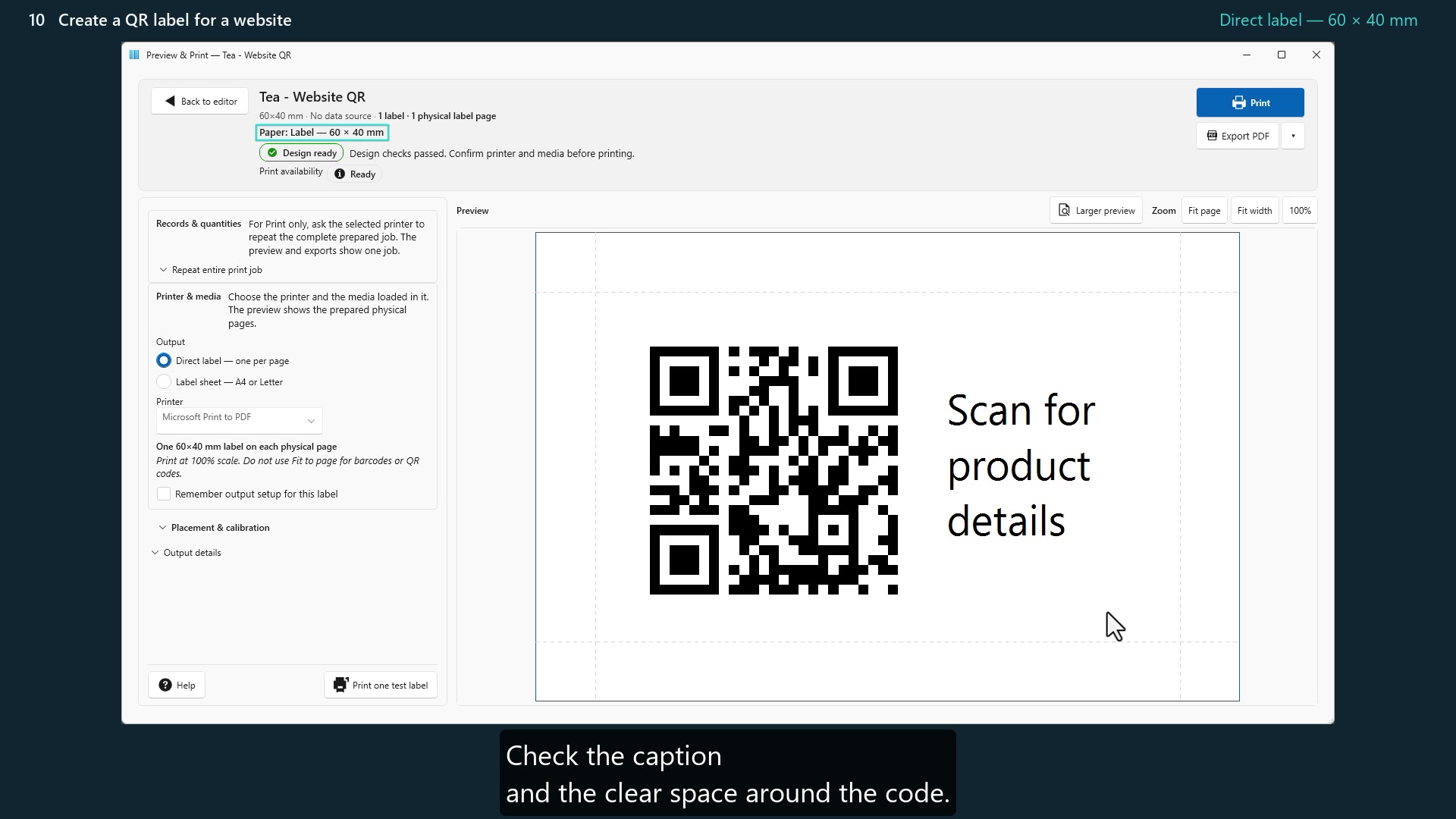
Create a QR label for a website
Create a QR code for a complete website URL, place a readable caption beside it, save and reopen the label, then check the exported PDF.
To watch here, enable Functional, Analytics and Advertisement cookies in Cookie preferences, or use the YouTube link.
No earlier lesson is needed. Replace the demonstration URL with your own working address and test the printed QR with a phone.
Try the same examples.
Download the fictional product data and example output used in the lessons. Compare your finished label or PDF with the supplied result.
Extract the ZIP first and open START_HERE.txt.
- Catalogue data: products.csv, with four products and quantities for lesson 03.
- Example PDFs: completed labels, batch codes, partly used sheets and alignment comparisons.
- Starting layouts: 08-10-practice.html explains the examples for visual layout, barcode types and website QR labels.
Keep connected CSV files in a stable folder. REPX files are layout references; recreate the example from its video and practice specification if your version has no import command.
Before printing your examples
Printing uses compatible Windows printer drivers. Thermal label printers can work when the driver supports your label size, media and setup. The app does not generate or send raw ZPL, EPL or TSPL commands.
Use settings that match your paper and printer. Print PDFs at Actual size / 100% and test a label with the intended barcode or QR reader before a full run. A correct preview or PDF does not confirm physical print quality.