SchedulerOne tutorials
Follow practical video walkthroughs for planning appointments and resources. Choose the task you want to complete and follow the steps in the app.
7 video tutorials · English narration and visible English captions · About 13 minutes in total
Video tutorials
Choose your cookie preferences to watch here, or use a direct YouTube link. Only the tutorial you select loads a player.
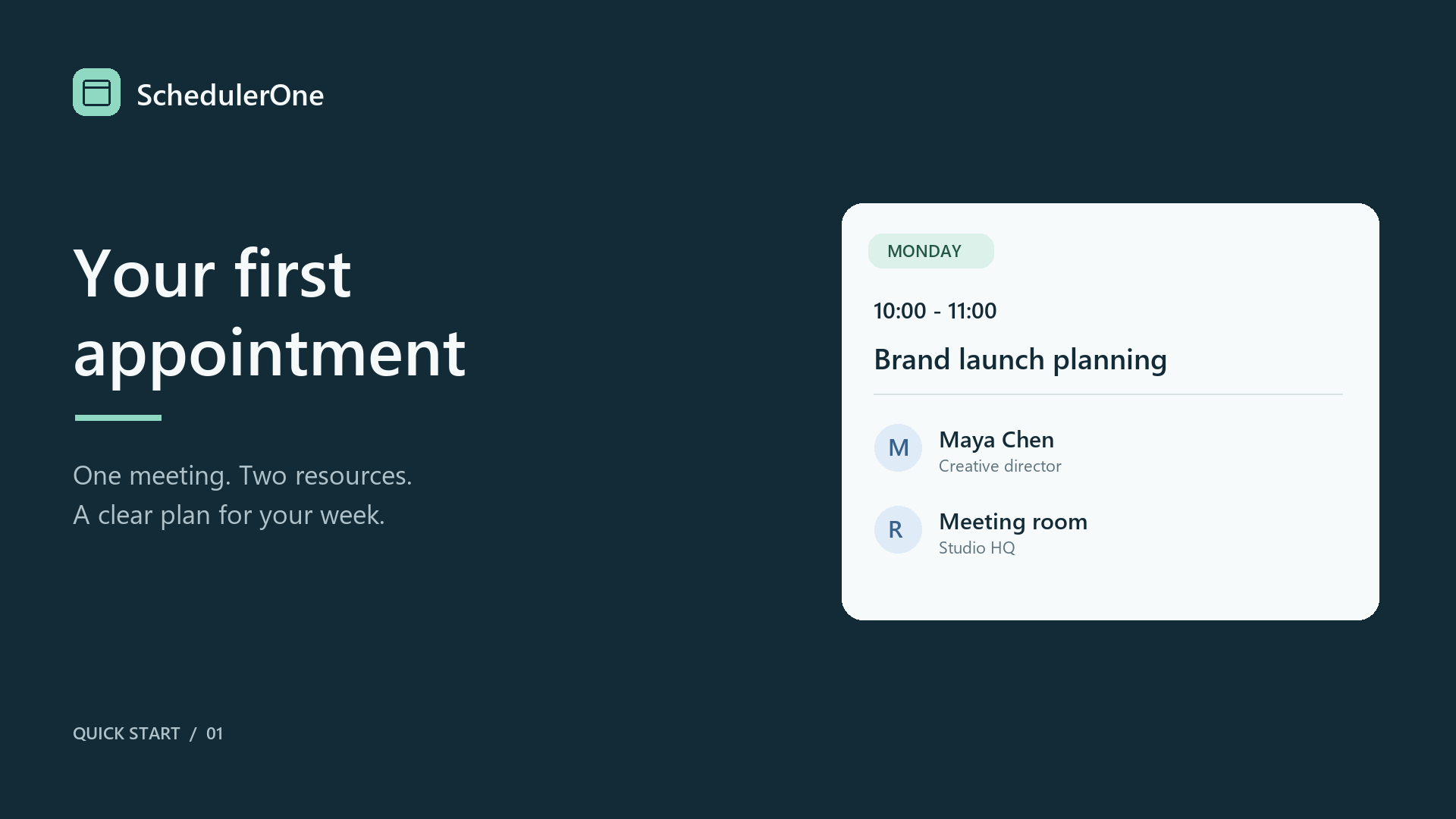
01. Create your first appointment
1:29 · English narration and captions
Add a meeting, set its time and details, and reserve a person and a room.
This video is hosted on YouTube. To watch here, enable Functional, Analytics and Advertisement cookies in Cookie preferences, or use the YouTube link.
Steps at a glance
- Choose a time in the calendar and open a new appointment.
- Enter the subject, location and agenda, then select the resources it needs.
- Choose a label and availability status, save, and reopen the appointment when you need to edit it.
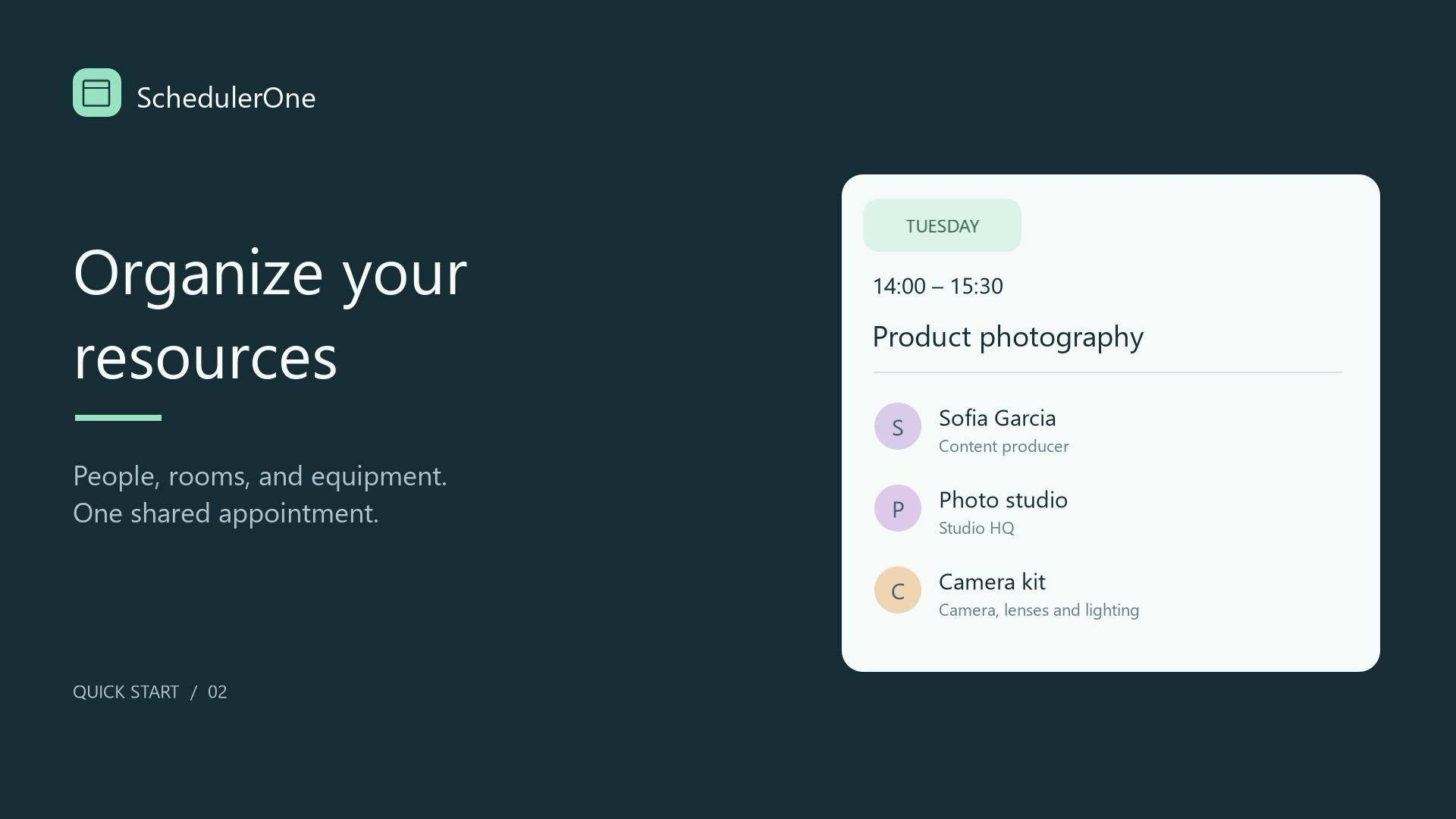
02. Organize people, rooms and equipment
2:10 · English narration and captions
Create a resource folder and camera kit, then book them with a person and a studio.
This video is hosted on YouTube. To watch here, enable Functional, Analytics and Advertisement cookies in Cookie preferences, or use the YouTube link.
Steps at a glance
- Add an Equipment folder and create a Camera kit resource with a short description.
- Open the photography appointment and select the person, studio and camera kit in Resources.
- Group the calendar by resource and choose which resource calendars to show. Location text alone does not assign a resource.
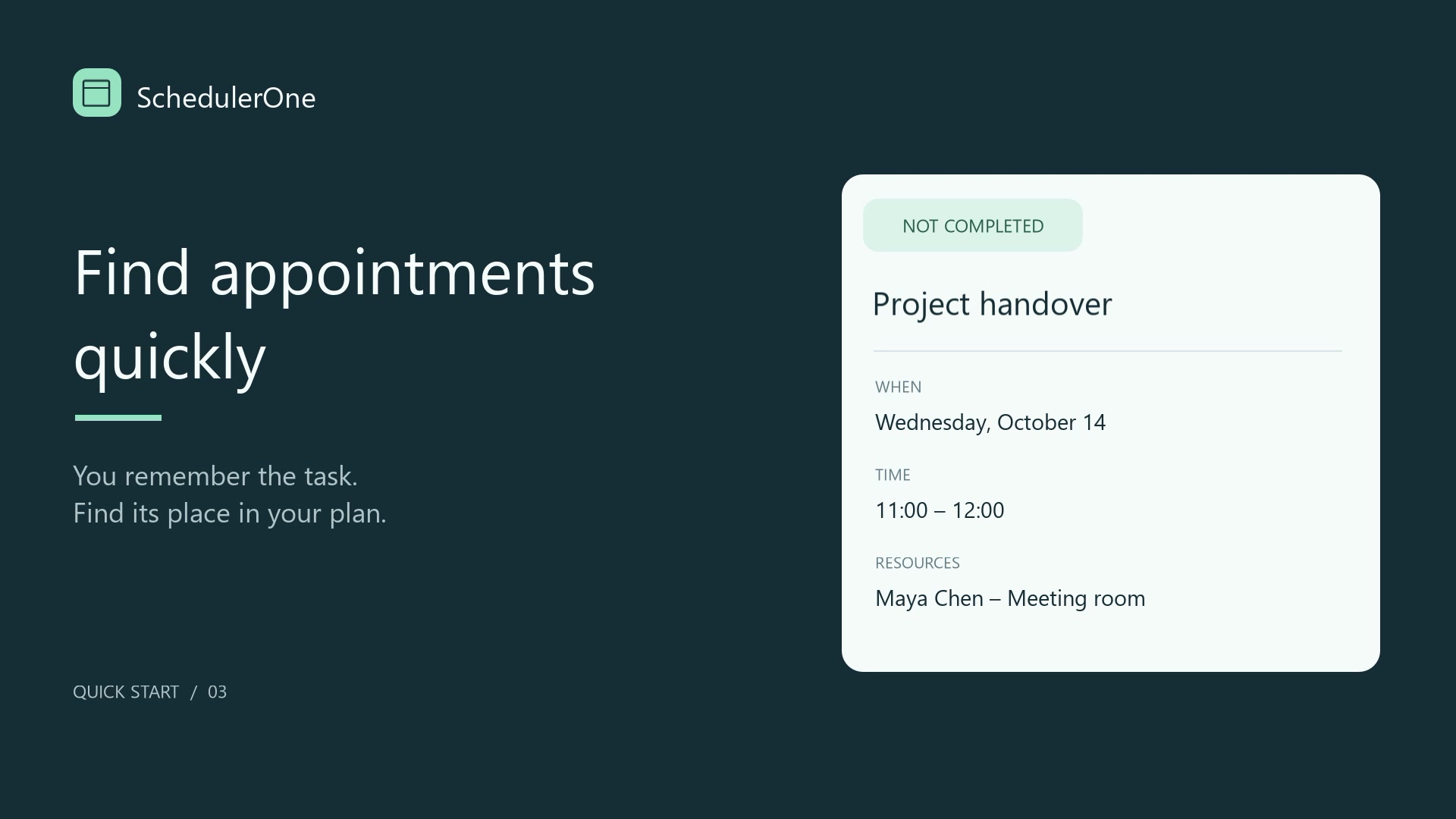
03. Find appointments with search and filters
1:46 · English narration and captions
Search across dates, narrow the results and return to a clear calendar view.
This video is hosted on YouTube. To watch here, enable Functional, Analytics and Advertisement cookies in Cookie preferences, or use the YouTube link.
Steps at a glance
- Use Search appointments to look for text in subjects, locations and descriptions.
- Choose All dates (List) and narrow the results using the filter options.
- Review the active-filter indicator, clear appointment filters and check resource visibility before returning to the calendar.
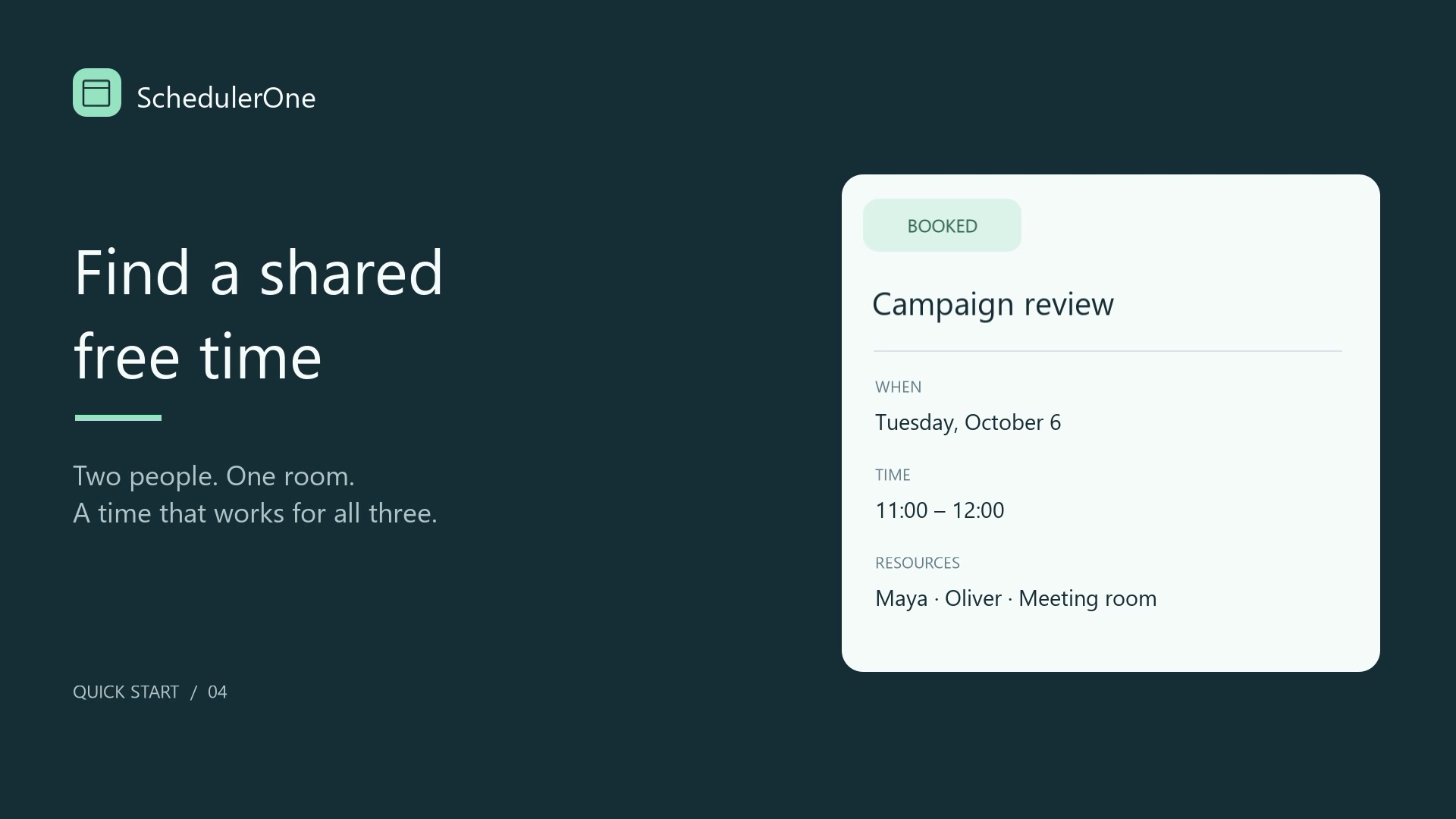
04. Find a common free time
1:54 · English narration and captions
Choose the required resources and turn an available time into a booking.
This video is hosted on YouTube. To watch here, enable Functional, Analytics and Advertisement cookies in Cookie preferences, or use the YouTube link.
Steps at a glance
- Open Find available time and choose the required resources, date range and duration.
- Select one of the proposed free times and choose Create appointment.
- Review the appointment details and save. The final reservation is checked again at save time.
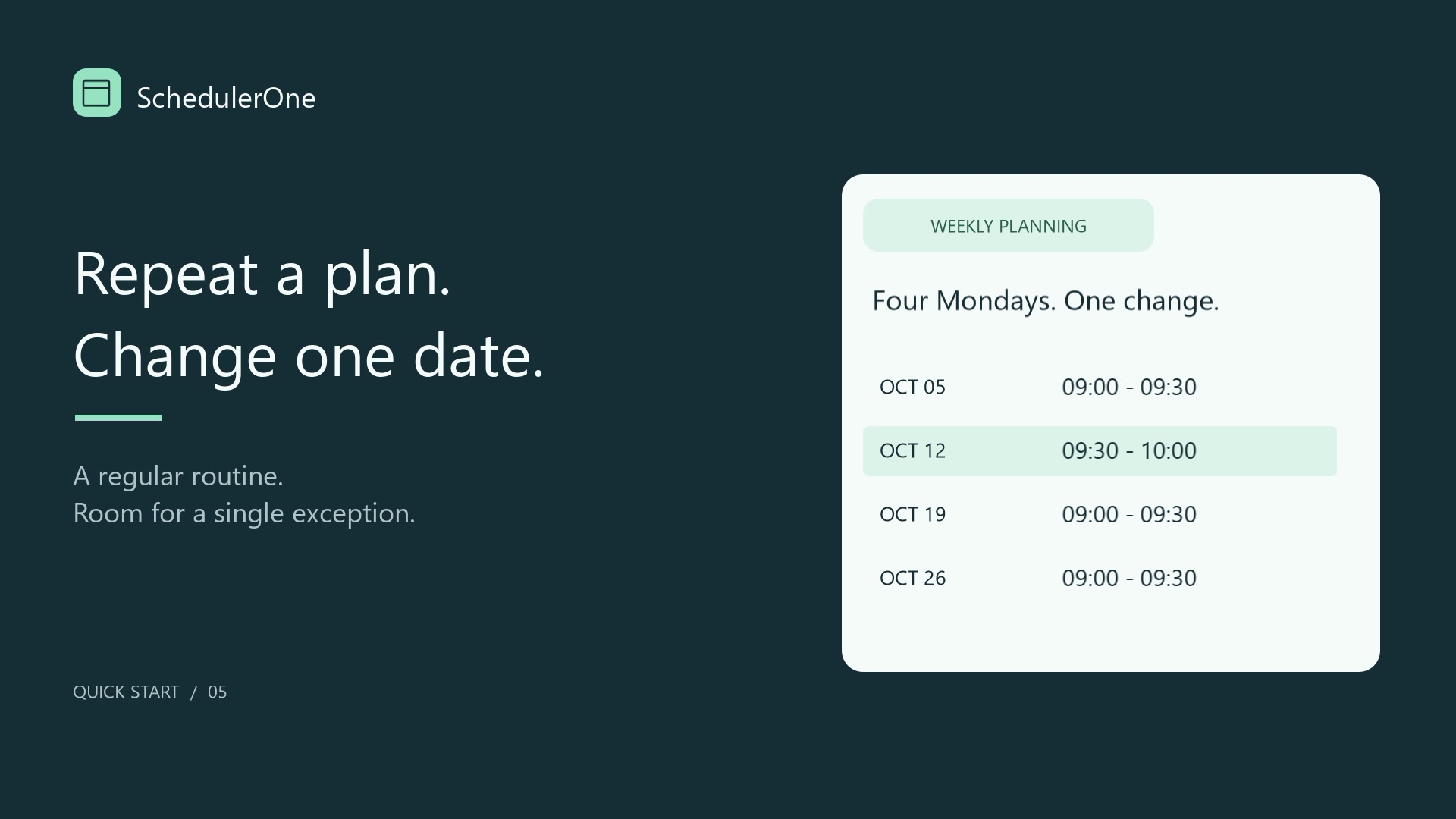
05. Change one recurring appointment
1:44 · English narration and captions
Create a weekly series and move one occurrence while keeping the rest of the plan.
This video is hosted on YouTube. To watch here, enable Functional, Analytics and Advertisement cookies in Cookie preferences, or use the YouTube link.
Steps at a glance
- Create a recurring appointment and choose its weekly pattern and end condition.
- Open the date you need to change and choose that occurrence, rather than the whole series.
- Move the occurrence and inspect the calendar to check the other dates are preserved.
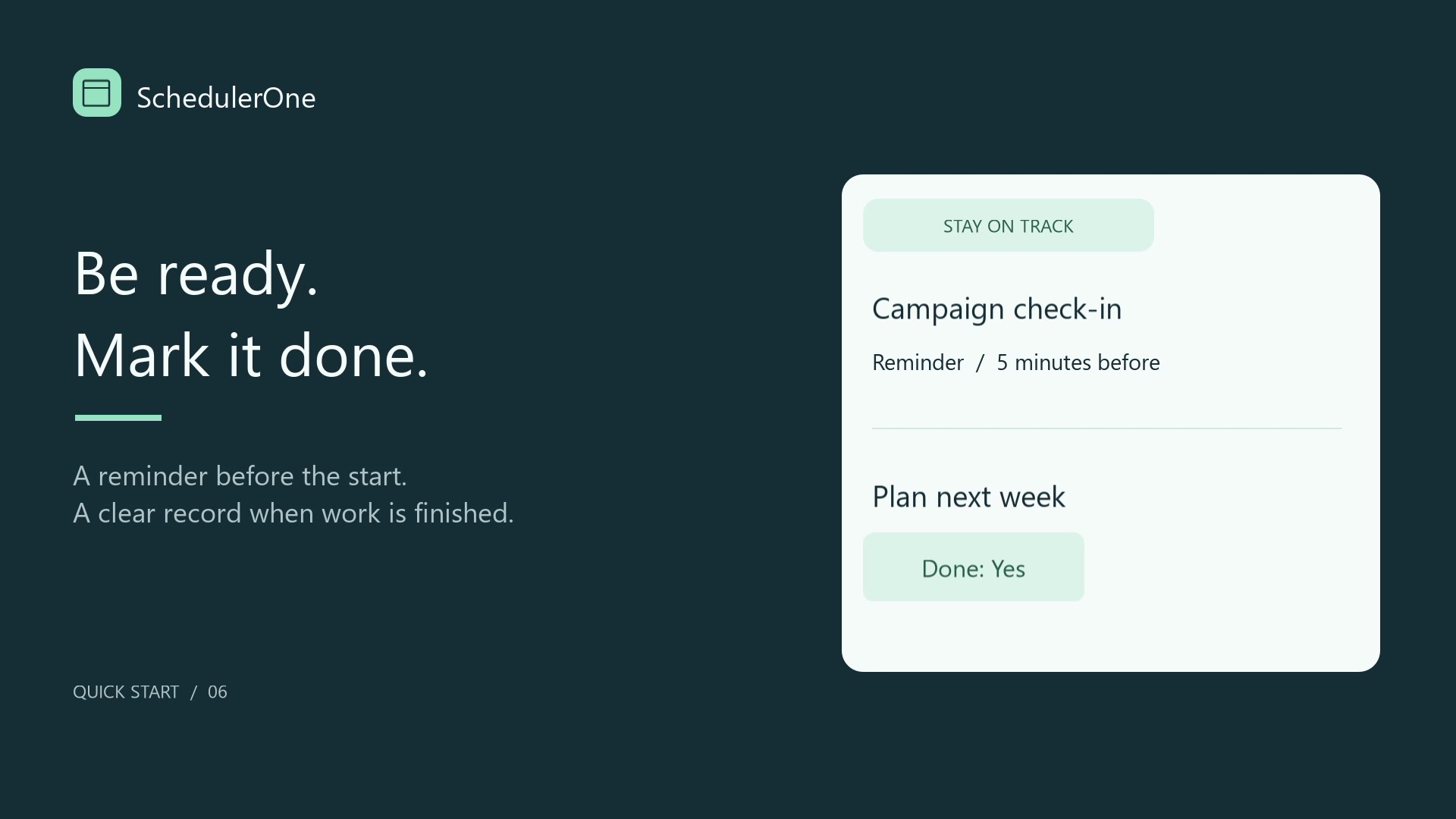
06. Set reminders and mark work done
1:33 · English narration and captions
Set a reminder, distinguish notifications and see completion update immediately in List.
This video is hosted on YouTube. To watch here, enable Functional, Analytics and Advertisement cookies in Cookie preferences, or use the YouTube link.
Steps at a glance
- Set a reminder before the appointment and keep SchedulerOne running, including in the system tray.
- Review the separate Notifications setting for alerts at appointment time.
- Open the appointment from List, check Done, then Save And Close. The row immediately shows Yes; Done removes reminders but does not free reserved time.
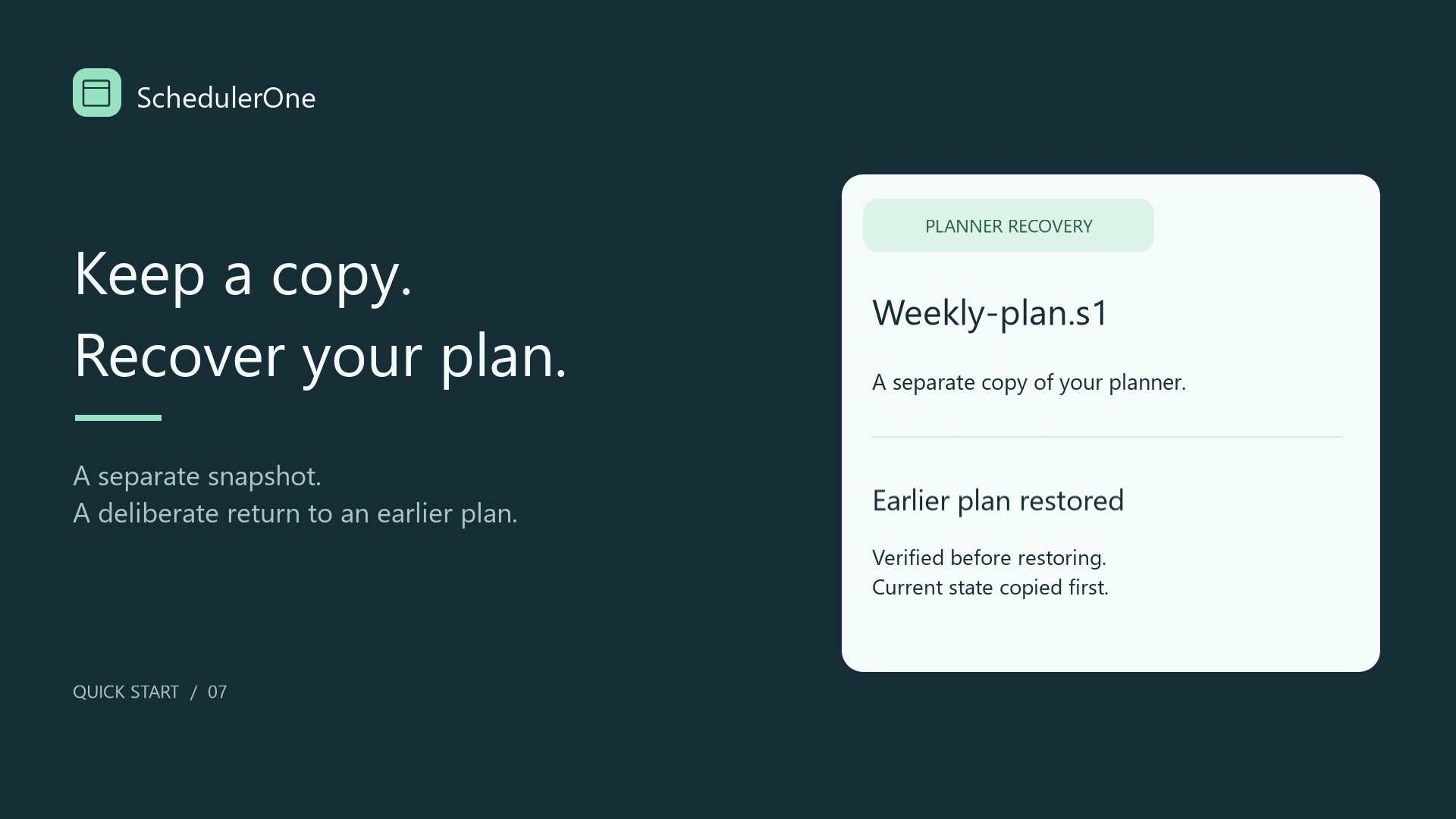
07. Save a copy and restore your plan
2:09 · English narration and captions
Save a planner copy, review backup history and restore a verified version.
This video is hosted on YouTube. To watch here, enable Functional, Analytics and Advertisement cookies in Cookie preferences, or use the YouTube link.
Steps at a glance
- Choose File > Save a copy to keep a separate .s1 snapshot of the current planner.
- Open Backup history and inspect the verified preview of a saved copy.
- Review the replacement confirmation before restoring. Restore replaces the current planner rather than merging; keep important exported copies on another drive.
Need more detail?
Browse the SchedulerOne FAQ or open Help in the app. For a question about your own setup, contact DefinedBytes support.