QUICK GANTT CHART · WORKED EXAMPLE
Build a project schedule with resource costs
See how people, materials and working hours become a task budget. Open a complete website launch project, check the numbers and compare one change with the original plan.
A fictional example for Quick Gantt Chart on Windows, checked in version 1.0.97.0.
ZIP · 139 KB · two editable .gnt projects, an exported PDF and instructions. Extract the ZIP before opening the files.
1. Open a schedule with the details already in place
In the app, choose File > Open and select Website launch – resource costs.gnt. The project contains 18 tasks across discovery, design and launch, with milestones and dependency links.
The working calendar is Monday–Friday, 08:00–16:00, without holidays. Auto Budget Calculation, automatic budget summing and the Budget column are enabled. The starting project budget is 20,400.
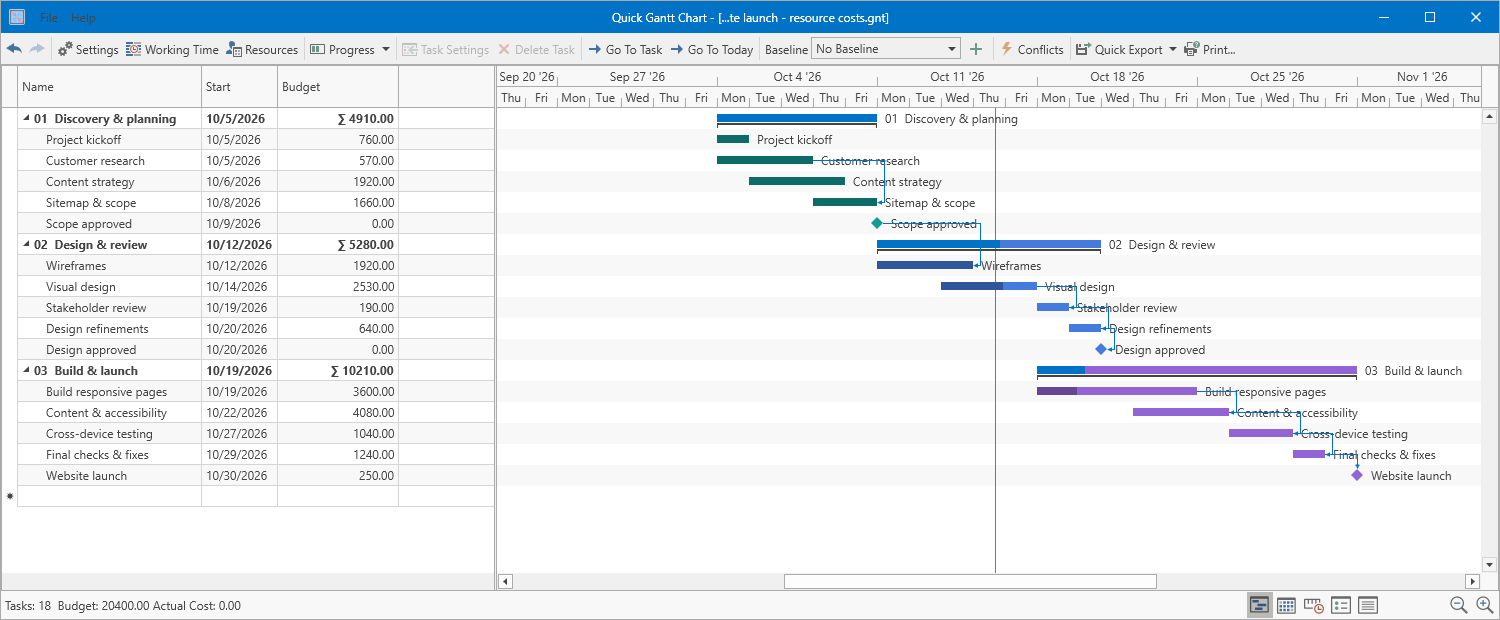
All names, dates and amounts are fictional. The example uses consistent cost units without specifying a currency. These figures are not market rates, a customer case study or the app’s price.
Starting from a spreadsheet instead? Follow the existing Excel/CSV import and PDF guide.
2. Give each resource the right cost type
Open Resources to inspect the rates used by the project. A person can have an hourly rate, a material can have a per-item cost, and a service can use a fixed amount.
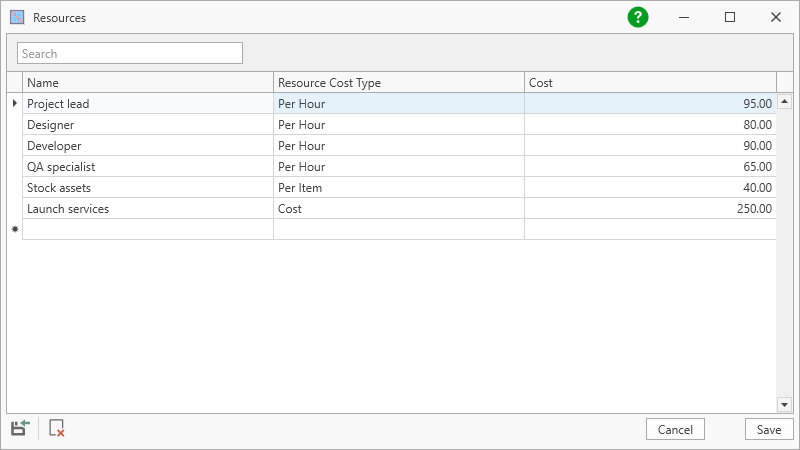
- Per Hour: assigned working time multiplied by the hourly rate.
- Per Item: quantity multiplied by cost per item.
- Cost: a fixed amount. The Website launch milestone includes the fictional launch service cost of 250.
When adapting the project, assign resources in Task Settings > Resources and check their allocation. The same calendar duration does not mean every assigned person works on the task full time.
3. Trace a task budget back to its inputs
Select Visual design, then open the dropdown in its Budget cell. The task runs from 14 October at 08:00 to 16 October at 16:00: three eight-hour working days.
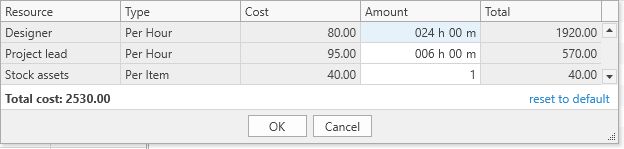
| Resource | Assigned amount | Rate | Cost |
|---|---|---|---|
| Designer | 24 hours · 100% | 80 / hour | 1920 |
| Project lead | 6 hours · 25% | 95 / hour | 570 |
| Stock assets | 1 item | 40 / item | 40 |
| Total | 2530 | ||
Use Amount in this popup to adjust a task’s hours, quantity or fixed amount when needed. Change the resource’s rate in Resources; the Cost column in this popup is not a rate editor. Close with Cancel if you are only inspecting the example.
Budget and Actual Cost are different. This project demonstrates planned costs. It does not record real expenses or automatically import what you have spent.
4. See what one extra working day changes
Open Website launch – baseline comparison.gnt. The saved Approved plan remains visible as gray reference bars. In this version, Content strategy finishes on 9 October instead of 8 October; its start is still 6 October at 08:00.
Its designer time increases from 24 to 32 hours. At 80 per hour, the task budget rises from 1920 to 2560 — an increase of 640. The project total is now 21,040.
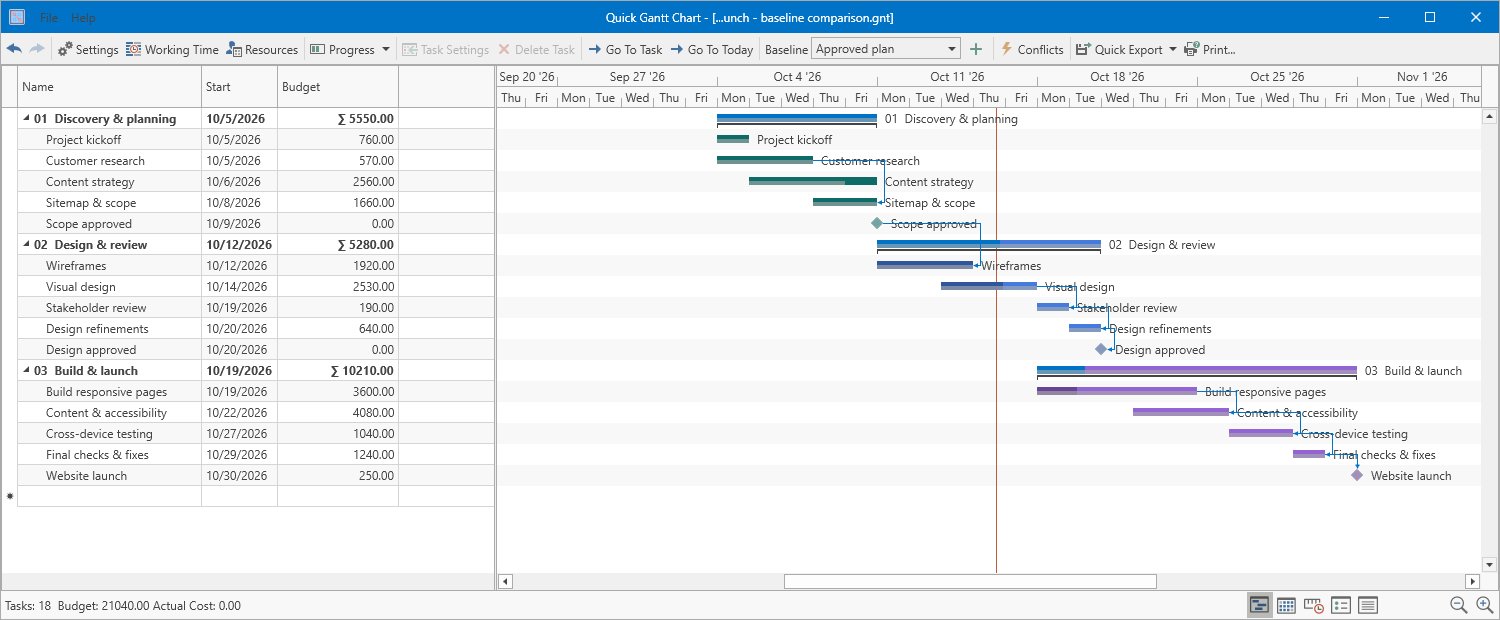
A baseline keeps planned dates for comparison. It is not a history of costs, and selecting it does not undo your current schedule. Keep separate project files when you need to retain complete versions.
To practice saving and selecting a baseline, follow the step-by-step baseline guide. Use a copy and review the resulting dates, particularly when tasks have dependencies.